
I was three minutes into a quiet save when the screen hiccupped and the game stuttered — the quiet became panic. I felt the stutter like a splinter in the engine and pulled the settings apart until the world smoothed out. If you play on PC, a few clicks will stop those freezes and keep your frames honest.
I hit a stutter on a wooden bridge at dusk — Best Gothic 1 Remake graphics settings for no lag and max FPS
I run this on a Ryzen machine and still saw odd micro-stutters in tight areas. You’ll want settings that favor consistency over absolute prettiness. I’ll show what I changed on my rig and why each option matters, so you waste less time trialing and more time exploring.
- My test rig: 32 GB DDR4 RAM; AMD Ryzen 7 5700X; AMD Radeon RX 9060 XT 16 GB
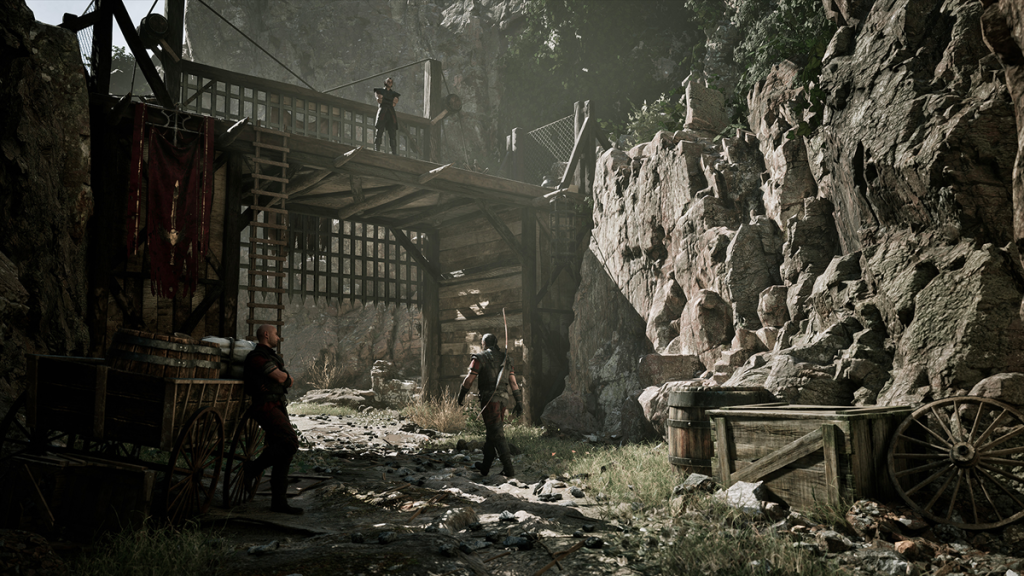
Walking past a campfire in the Valley of the Mines exposed the worst drops — Practical settings that keep FPS steady
Stuttering often shows up where geometry, foliage, and lighting all fight for the GPU. The trick is to push load off the GPU where it hurts and keep the frame pacing steady. You can do that without wrecking the art direction.
- Display mode: Fullscreen — gives the OS and driver the cleanest path to control refresh and latency
- Resolution: Native monitor resolution — sharper and less scaling work
- VSync: On if you notice stutters — it caps tearing and hides uneven frame pacing
- Frame rate limit: 60 FPS — a stable 60 is better than 120 with spikes
- Gamma: 2.2
- Field of View: 75
- Motion Blur Intensity: 0 — I turn it off; it masks motion but can hide micro-hitches
- Bloom Intensity: 100
- Depth of Field Intensity: 100
- Ambient Occlusion Intensity: 100
- Sharpening Intensity: 100 — drop this if you see hitching during crowded scenes
- Saturation / Contrast / Brightness: Default
- Upscaler: Off — turn it on only if you need extra frames; it trades fidelity for performance
- Quality Preset: Custom
- View Distance Quality: Medium
- Anti-Aliasing Quality: Medium
- Shadow Quality: Low — shadows are a heavy GPU tax with small visual returns
- Reflection Quality: Low — same logic as shadows
- Post-processing Quality: Medium
- Texture Quality: Medium
- Effects Quality: Medium
- Foliage Quality: Low — dense foliage kills frame pacing in valleys
- Shading Quality: Medium
- Landscape Quality: Low
I used driver tools to chase down frame pacing — How to make drivers and overlays play nice
Third-party overlays and old drivers are the usual suspects. Turn off Discord overlay, close GeForce Experience or AMD Overlay if you’re troubleshooting, and test again. For performance monitoring, use MSI Afterburner with RivaTuner (RTSS) to log frame times rather than just FPS.
- AMD users: Check AMD Adrenalin for Radeon-specific frame pacing options
- NVIDIA users: Use GeForce Experience to force VSync or adaptive sync if you need it
- Windows: Enable Game Mode and disable background recording if you’re seeing stutters
- Monitoring: MSI Afterburner + RTSS for frame-time graphs; they reveal stutter the FPS counter hides
How do I stop Gothic 1 Remake stuttering?
First, cap your frame rate and run fullscreen. Then drop shadow, foliage, and reflection settings to low and push textures to medium. If stutter persists, close overlays and profile with MSI Afterburner — you’ll usually find a background process or VRAM spike is the offender.
What are the best graphics settings for Gothic 1 Remake?
For steady play: Fullscreen, native resolution, 60 FPS cap, VSync on (if needed), and a custom preset with shadows, reflections, foliage, and landscape set low while keeping textures and post-processing at medium. That mix keeps visuals pleasing while safeguarding frame pacing.
Will my PC run Gothic 1 Remake at 60 FPS?
Most systems above recommended specs will hit a steady 60 with the settings above. If you’re on older hardware, enable the upscaler and pull foliage and shadows down first. Watch VRAM use in MSI Afterburner — sudden spikes predict hitching.
I made changes that removed all the sudden pauses — Final tweaks and habits that keep play smooth
Keep GPU drivers current and avoid running heavy background recording. If you mod the game or add high-res texture packs, expect to trade frames. Treat settings like levers: raise textures first, lower shadows and foliage before tinkering with post-processing.
Stutters are avoidable; they’re a splinter that can be pulled with the right tools, and without those interruptions, the Valley of the Mines flows. Frame drops turning the world into wet paint is a mood killer — don’t let it win. Ready to test your rig and make Gothic run like it should?