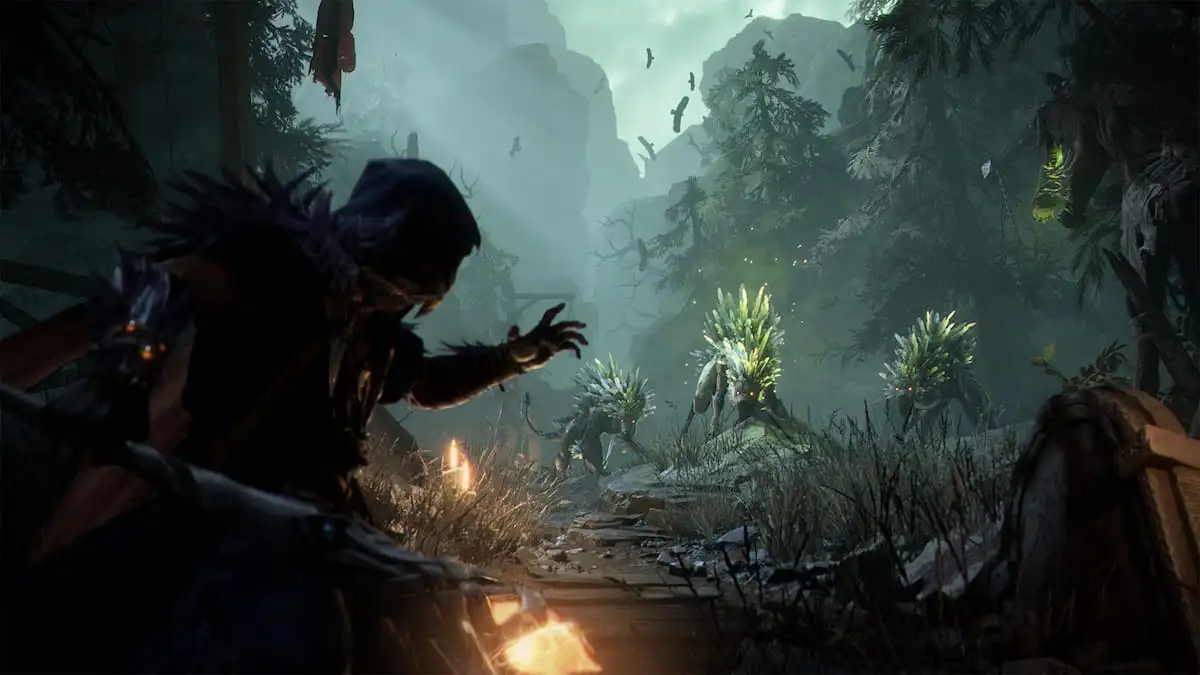
Mistfall Hunter hiccuped into life, and my dodge input arrived half a beat late. The boss finished its combo and I felt every dropped frame like a small betrayal. I decided to fix it before I let the next run slip away.
I’ve run the game across sessions, toggled settings, and pushed drivers until Windows reported that it was tired. You and I will focus on what actually smooths gameplay for rigs that are closer to the minimum than the hype-fed recommended numbers.
In my apartment I can reproduce a hitch every time I cross the misty ridge. Here’s the setup I play on and what I change to make the game run steady.
My test rig
- AMD Radeon 9060XT 16 GB
- AMD Ryzen 7 5700X
- 32 GB DDR4 RAM
The reality: the game runs, but it didn’t feel smooth until I stopped trusting defaults. Below are the settings I use to push for steady frames without killing visual clarity.
- Window Mode: borderless window if you use multiple monitors
- Vertical Sync: Off. Flip this On only if you chase smoothing over raw frame count.
- Frame Rate Limit: 60 — the 60 FPS cap turned into a calm shepherd for your frames
- Brightness: personal preference
- Color Blindness: set as applicable
- Overall Quality Preset: Custom
- Anti-Aliasing Type: FSR for AMD rigs; TSR for Nvidia
- FSR Mode: Balance or Performance
- FSR Frame Generation: Off
- AMD Anti-Lag2: On
- Ray Tracing: Off
- Shadow Quality: Low
- View Distance: Moderate to High (avoid Ultra unless you have headroom)
- Character Animation Quality: Balance
- Texture Quality: Low to Moderate
- SFX Quality: Low to Moderate
- Post-Processing: Moderate
- Motion Blur: Off
- Global Illumination: Moderate
- Use GPU Crash Debugging: On
In testing on Steam and a clean Windows build I saw the biggest wins from two changes. Here’s why they matter and how to tune them.
Lowering shadows and textures cuts CPU/GPU overhead around crowded scenes. Turning off ray tracing removes heavy shader work that eats frames. Anti-lag features and a reasonable FSR preset let you trade a bit of sharpness for far fewer stutters. For AMD users, FSR plus Anti-Lag2 is often the most stable combo; Nvidia users should try TSR and keep drivers current through GeForce Experience.
How do I stop Mistfall Hunter stuttering?
First, cap your frames—60 FPS is where stability meets responsiveness on many mid-range machines. Then turn off ray tracing and lower shadows. Update your GPU drivers (AMD Radeon Software or Nvidia GeForce Experience), enable FSR/TSR depending on GPU, and switch AMD Anti-Lag2 on if you’re on Radeon. If stutter persists, check background apps (OBS, Chrome) and power plan in Windows to favor performance.
What settings give highest FPS in Mistfall Hunter?
Max FPS comes from the usual suspects: shadows at Low, textures at Low/Moderate, ray tracing Off, post-processing Moderate or lower, and FSR set to Performance. You’ll sacrifice some visual fidelity, but you’ll gain a consistent, competitive frame rate. If you stream on the same PC, factor that CPU/GPU load into your choices.
Does ray tracing affect performance in Mistfall Hunter?
Yes. Ray tracing adds heavy lighting and shader work; on a mid-range card it causes noticeable FPS drops and stutters. Keep it Off unless you run a high-end GPU and want the visual boost. If you have an Nvidia RTX card, test with DLSS alternatives; on AMD, FSR is your tool of choice.
I ran driver versions from AMD and Nvidia, compared FSR/TSR profiles, and watched frame pacing in real time. In some scenes your GPU becomes a strained trumpet, coughing out notes when pixels surge—so manage the load, not just the numbers.
Final tactical checklist: cap to 60 FPS, disable ray tracing, use FSR/TSR per vendor, set shadows low, keep textures moderate if you want flavor, and turn on Anti-Lag where available. Which single change would you try first to stop that mortal hit from feeling inevitable?