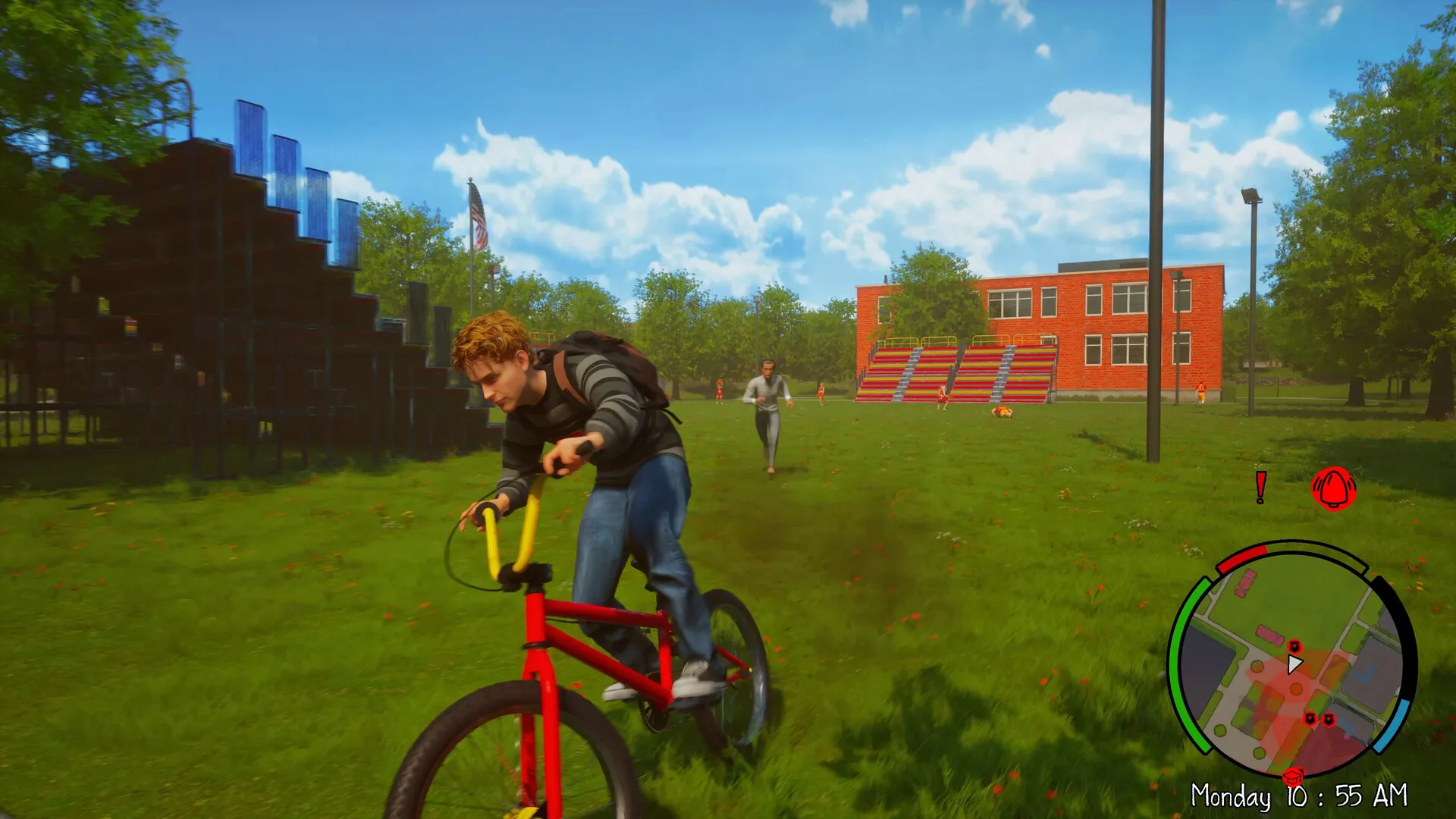
My first five minutes in Agefield High: Rock the School were a lesson in disappointment — loot boxes could wait, but the frame-rate couldn’t. The crowd in-game moved and my GPU sounded like it was arguing with the fans. I sat back, frustrated, and realized the launch build needs hands-on tuning to run smoothly.
I’m writing from the trenches: I’ve tested settings on a mid-high rig so you don’t waste time guessing. You’ll get clear, opinionated guidance and the exact toggles I changed to turn a jittery session into something playable on launch night. Try these and judge for yourself.
My rig felt modern — here’s why that mattered before I adjusted settings
I tested on an AMD Radeon 9060XT 16 GB, AMD Ryzen 7 5700X and 32 GB DDR4 RAM. That should be more than enough for smooth runs, but the game shipped with flaky optimisation and inconsistent FPS. I made targeted reductions to keep visuals acceptable while killing micro-stutter.
- FOV: 70 — the default is fine; don’t mess with it unless you need it.
- Fullscreen Mode: Personal preference — borderless can be handy for alt-tabbing, but fullscreen sometimes gives steadier timing.
- Screen Resolution: Use your monitor’s native resolution.
- VSync: Enabled — counterintuitive, but with the current engine it steadies frame pacing more than it hurts input.
- Enable FPS Limit: Yes — absolutely necessary right now.
- FPS Limit: 60 — do not go higher on this build.
- FSR: Performance (for AMD GPUs)
- DLSS: On (if you’re on Nvidia; use GeForce Experience to force settings if the in-game toggle misbehaves)
- Motion Blur: Disabled
- Anti-Aliasing: Medium
- Post Processing: Medium
- Shadows: Low
- Reflections: Low
- Textures: Medium
- Effects: Low
- Foliage: Medium
- Shading: Low
The Steam review page felt crowded — which led me to test overlays and background apps
Steam users reported similar slowdowns; crowd-sourced complaints pointed at overlays and background recorders. Disable Steam overlay, Discord overlay, and any in-game recording tools during sessions. Use MSI Afterburner (with RivaTuner) to track real-time GPU/CPU/FPS and see what spikes when the game hiccups.
How can I reduce lag in Agefield High?
Turn off overlays, cap FPS at 60, enable VSync, and prefer FSR Performance or DLSS. Use Radeon Software (Adrenalin) or GeForce Experience to update drivers and apply performance profiles. If you’re still seeing stutter, check CPU core usage — the game can be hungry on one thread; enabling SMT/Hyper-Threading tweaks in BIOS rarely helps here, but prioritising the process in Task Manager can temporarily improve frame pacing.
I noticed frame drops during cutscenes — so I tested upscaling and limits next
In my runs, temporal upscalers saved performance without collapsing visual clarity. DLSS on Nvidia and FSR on AMD cut GPU load significantly. Keep Anti-Aliasing and Post Processing at medium, but pull Shadows and Reflections down — they’re high-cost settings for little gain in this title.
What settings give the highest FPS?
Set Shadows, Reflections, Effects, and Shading to Low; Textures and Foliage to Medium; Anti-Aliasing and Post Processing to Medium. Cap FPS at 60 and use DLSS (Quality or Performance depending on your card) or FSR Performance. These swaps transformed my 30–40 FPS dips into consistent 55–60 FPS stints.
The game behaved differently on AMD and Nvidia — a short comparison that matters
On Radeon hardware I preferred FSR Performance and medium textures; on Nvidia I leaned on DLSS via GeForce Experience and slightly higher texture settings. Use the vendor tools (AMD Adrenalin, Nvidia Control Panel) to tweak power and performance modes — sometimes setting the GPU to “Prefer maximum performance” reduces clock ramping stutter.
Small practical checklist before you play:
- Update GPU drivers (use Steam, AMD Adrenalin, or GeForce Experience).
- Disable overlays (Steam, Discord, Xbox Game Bar).
- Run MSI Afterburner to watch temps and clocks.
- Limit FPS to 60 in-game and enable VSync for smoother pacing.
- Choose DLSS (Nvidia) or FSR Performance (AMD) for best results.
Yes, the launch state feels rough — a misfiring engine that needs tuning and some patience. The settings list is a scalpel in a surgeon’s hand: small, precise edits give the biggest change. If you paid $30 (€28) at launch and want to actually play tonight, apply these changes and run a quick stress pass with an FPS overlay. What will you change first, and how long before the devs patch the rest?