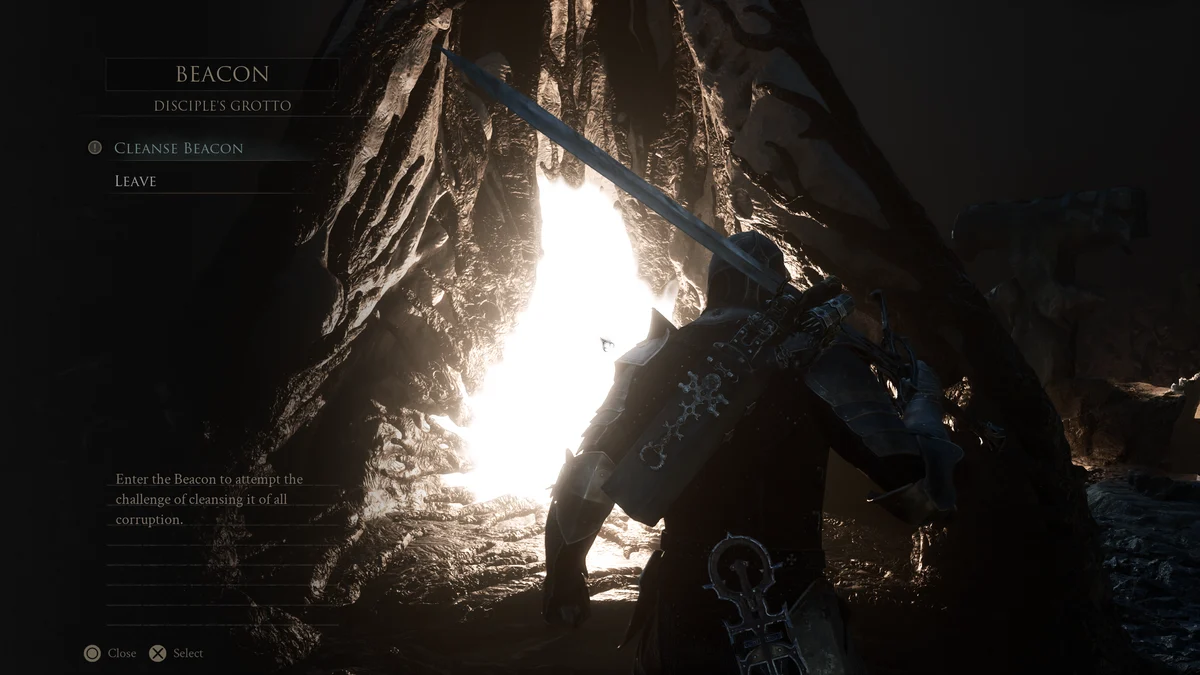
I was three hours into a boss fight when the game hiccuped—frames froze, my parry missed, and the whole fight felt cheap. I closed the game, rolled up my sleeves, and started changing one setting at a time until the stutter vanished. What follows is exactly what I changed to stop the freezes and keep the FPS steady.
I test with a mid-range rig so the recommendations fit players who aren’t running bleeding-edge hardware. You should be able to follow these steps whether you’re on an AMD or Nvidia system; I’ll point to the tool or driver you should check when it matters.
My test rig
- AMD Ryzen 7 5700X
- AMD Radeon 9060XT 16 GB
- 32 GB DDR4 RAM
My play sessions showed the biggest issues were frame pacing and background load.
Set the game to stop fighting your GPU and CPU. I stripped visual bells until the experience was smooth and responsive—then dialed a couple of things back up where they mattered. Tweaking Mortal Shell 2 felt like tuning an old carburetor: small changes make a big difference.
- Window Mode: Windowed Fullscreen (use if you run multiple monitors)
- Render Resolution: Performance or Ultra Performance
- Resolution Upscaler: FSR (AMD FidelityFX Super Resolution)
- Vsync: Off (turn on only if you still get stutters; it trades peak FPS for smoother timing)
- Framerate Limit: 60 FPS (sweet spot for many systems)
- Frame Generation: Off
- Scalability: Custom
- Global Illumination: Low
- Shadows: Low
- Anti-Aliasing: Medium
- View Distance: Medium
- Textures: Low (raise to Medium if no stutter)
- Visual Effects: Low
- Reflections: Low
- Post Processing: Medium
- Environment: Low
- Seamless Dungeons Loading: Off
- Brightness: Personal preference
- Gamma: 1.0
- Sharpness: 0.1
- Bloom: Off
- Chromatic Aberration: Off
- Film Grain: Off
- Lens Flares: Off
- Motion Blur: Off
- Vignette: Off
Putting a strict FPS cap fixed more problems than any single visual tweak on my system. If you want the smoothest input and consistent frame pacing, start by capping the framerate before touching anti-aliasing or texture packs.
I noticed driver updates and background apps often made a difference between smooth play and janky frame drops.
Keep Radeon Software or GeForce Experience current. If you use Steam, close overlay-heavy tools or set Mortal Shell 2 to high priority in Task Manager when testing. For AMD users, FidelityFX FSR is the easiest upscaler to deploy; for Nvidia users, check for DLSS support or use driver features in GeForce Experience.
How do I stop stuttering in Mortal Shell 2?
Close overlays (Discord, Steam overlay, recording software), cap your FPS at 60, and turn off Frame Generation. Update GPU drivers via AMD Radeon Software or Nvidia GeForce Experience and test with FSR enabled. If stutter persists, drop Textures and Global Illumination one notch.
What graphics settings give the best FPS in Mortal Shell 2?
Treat performance as a budget: lower shadows, reflections, and environment detail first. Keep Anti-Aliasing at Medium and Post Processing at Medium for acceptable visuals while freeing CPU/GPU headroom. If you have RAM constraints, keep Textures Low.
Does Mortal Shell 2 support FSR or DLSS?
Yes—use FSR (FidelityFX Super Resolution) on AMD and mixed rigs for an easy performance boost. Nvidia DLSS support depends on your GPU and driver; check the patch notes and GeForce Experience. Using FSR or DLSS can feel like switching to a magnifying glass that preserves detail while shrinking render cost.
Final operational tips: cap your FPS, keep drivers updated, and test one setting at a time so you can tell what fixes your issue. Are you going to chase higher visuals or lock in the smoothest run first?