
I hit a mission screen and the turn order froze for three full seconds. My heart sank—then I capped the frame rate and the problem evaporated. You want a smooth campaign; I tested settings until the game stopped tripping over itself.
I’m writing from the perspective of someone who plays methodically and tweaks surgically. You’ll get a compact list of settings that helped my rig and clear rules for machines closer to minimum spec. Treat this as field notes, not a manifesto.
My 5700X + 9060XT showed the biggest change when I forced a frame cap before changing anything else. Best Star Wars Zero Company graphics settings
Short version: cap your FPS, favor upscaling over native heavy shaders, and strip shadows and reflections on older GPUs. Below I list exactly what I tested and why each tweak matters.
- CPU: AMD Ryzen 7 5700X
- GPU: AMD Radeon 9060XT 16 GB
- RAM: 32 GB DDR4
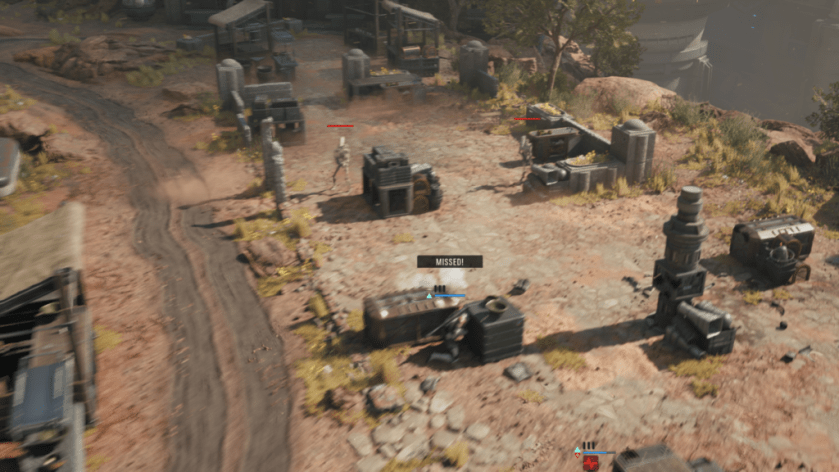
When scanning Steam reviews I noticed a pattern: stutters cluster around crowded action screens. How I recommend you set the game to stop tripping over itself
- Windowing Mode: Personal preference. Fullscreen can reduce alt-tab hiccups.
- Resolution: Use your monitor’s native resolution unless you need extra FPS—then downscale with an upscaler.
- Frame Rate Limit: 60 FPS (or 75 if your panel supports it). Turn this down before cutting visual fidelity—capping is like slamming a brake on a runaway cart: it stabilizes the whole system.
- VSync: Off. Enable only if you see visible tears and have rock-solid FPS.
- Antialiasing/Upscaling: AMD FSR on Radeon hardware; TSR (temporal super resolution) for other GPUs. Upscale first, then tweak shadows.
- Upscaling Quality: Performance or Balanced—Performance on older cards, Balanced on mid-range.
- Frame Generation: Off. NVIDIA Frame Generation (DLSS Frame Generation) can help on 40-series cards, but it sometimes amplifies stutter in tactical titles.
- AMD Anti-Lag 2: On for Radeon GPUs to shave input latency.
- Overall Quality: Custom
- Shadow Quality: Low — shadows cost more than they add in a turn-based tactics game.
- Global Illumination: Low
- Reflections: Low
- Post Processing: Medium — keeps visual flavor without tanking FPS.
- Textures: Low on 8 GB or less GPUs; Medium if you have 12–16 GB VRAM.
- Effect Quality: Medium
- Shading Quality: Low
- View Distance: Low
- Hidden Objects Detail: Simplified
- Environment Geometry Detail: Off if you have older GPUs—this trims CPU and GPU load.
How do I improve performance in Star Wars Zero Company?
Start by capping FPS and enabling an upscaler. Then remove expensive, often unnecessary features: shadows, reflections, and heavy global illumination. If you use Steam, check community reports for hot patches and GPU driver updates from AMD or NVIDIA—both companies pushed driver fixes after similar launches.
What are the best graphics settings for Zero Company?
Set everything that hits GPU performance to low, preserve medium post-processing for legibility, and use FSR/TSR for visual clarity when lowering native resolution. On AMD hardware, use FSR and Anti-Lag 2; on NVIDIA 40-series, test DLSS Frame Generation but keep it off if you see temporal jitter.
Why is Zero Company stuttering on PC?
Stutter usually comes from an uncapped, variable FPS, sudden CPU spikes from draw calls, or heavy VRAM swapping. Turn the frame cap on, reduce environment detail, and watch GPU memory use in tools like MSI Afterburner or AMD Radeon Software—diagnostics often point to the offender.
I noticed the single biggest UX gain came after a quick driver update and a handset of small tweaks. Final tuning steps and tooling
Use these tools while you test: AMD Radeon Software (for FSR and Anti-Lag), NVIDIA Control Panel (for DLSS and Frame Generation), MSI Afterburner (for monitoring), and Steam’s community hub for timely reports. Update GPU drivers, then run a 10–15 minute session on a busy map to confirm stability.
If you want a one-line checklist: cap FPS → enable FSR/TSR → set shadows/reflections low → keep post-processing medium. Think of this like dimming neon to save power—the scene reads the same, the machine breathes easier.
I expect a few post-launch patches to tidy lingering issues, but the settings above will make the game playable today. Which tweak will you test first and why?