
I watched my valley sit empty while a friend scrolled through preset codes, then—within minutes—Main Street felt lived-in. You feel that relief when a sprawling space finally looks intentional, and you want the same for your world. I’ll walk you through the exact steps I use to make, share, and import presets so you waste less time staring and more time playing.
At my desk I watched a friend rescue an empty plaza with a single preset — then asked me how. How to create and share preset codes in Disney Dreamlight Valley
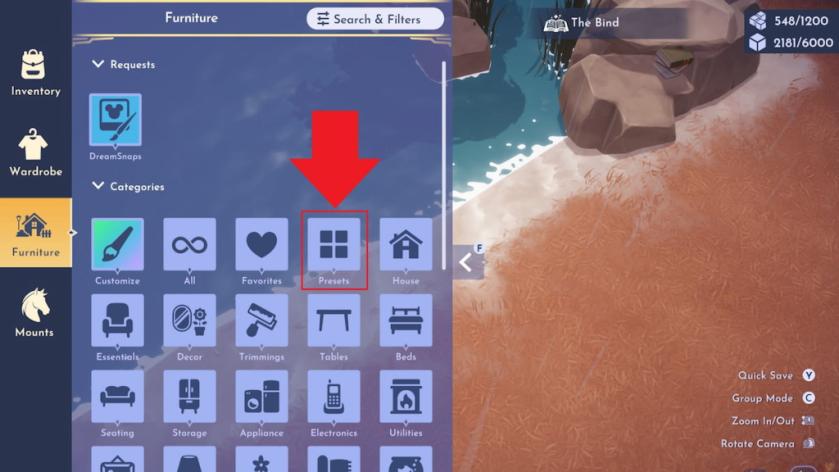
I’ll be blunt: preset creation is the simplest way to duplicate a look across large swathes of your valley. Think of arranging items as placing puzzle pieces; presets let you capture that arrangement and hand it to someone else.
How do I create a preset code in Disney Dreamlight Valley?
- Finish the Developed Decorating quest. Talk to Merlin and complete that quest first — the game hides the Presets feature until it’s done.
- Open the Furniture page. The Presets tab lives inside this menu.
- Select the Presets tab. You’ll find it near the right end of the first row, between Favorites and House.
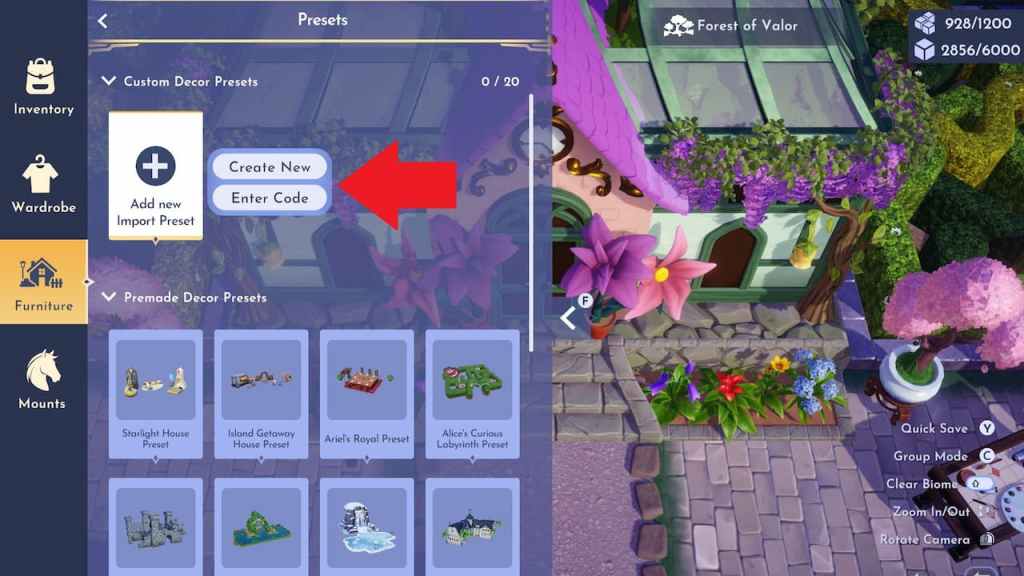
- Pick Add new. Highlight every object you want included, then choose Save preset.
- Choose Share preset. Hover over your saved preset and pick Share preset to generate a temporary code you can paste into chats or community posts.
At a friend’s place I watched them paste a code and see a plaza populate instantly. How to use preset codes in Disney Dreamlight Valley
Using someone else’s preset feels like a free decorating shortcut—especially handy if you’re missing a few items or want instant curb appeal.
How do I use preset codes in Disney Dreamlight Valley?
- Open the Furniture page in-game.
- Switch to the Presets tab.
- Select Add new import preset.
- Pick Enter code, then paste or type the code you copied from the community.
- The game will show what’s included; accept to place items in your valley. If you don’t own certain pieces, DDV will notify you.
On my feed I scrolled past a dozen community posts, then saved three codes in a minute. How to find preset codes in Disney Dreamlight Valley
If you want presets that match a theme or use rare items, go where creators gather: community hubs and official channels. A preset code is a key that fits a thousand locks when used across different players’ maps.
- Starlight Dreamers Portal. The community-run Starlight Dreamers has a dedicated presets page where creators list full details and screenshots — the easiest place to browse curated builds.
- /r/DreamlightValley on Reddit. Players post designs, custom codes, and walkthroughs there daily.
- Official DDV accounts. Gameloft and Disney sometimes share presets on their Twitter, Instagram, or Discord; following those channels nets occasional freebies and event designs.
- Community Discord servers and creators on YouTube or Twitch. Many builders share codes in video descriptions or pinned chat messages during streams on Steam, Nintendo Switch, PlayStation, and Xbox communities.
I tested a shared code three weeks later and it had expired — a simple fact to remember. How long do preset codes last in Disney Dreamlight Valley?
How long do preset codes last?
All preset codes expire after 14 days. If you want a preset to stay shareable longer, the creator must generate and post a new code after that two-week window.
If you’re trying to fill a big DLC area or standardize designs across friends’ valleys, presets save hours. Want to debate whether presets make players lazier or more creative?