
I was standing in Brightbolt Plaza, fingers hovering over the controller, and nothing happened when I tried to wave. You know that micro-panic—your carefully staged screenshot ruined by silence. I learned the emote wheel by accident; I’ll save you the facepalm.
How do you emote in Disney Dreamlight Valley?
A single button hides among a cluster of HUD icons and gets missed more than you’d expect.
You trigger emotes with the small smiling-face button in the bottom-right of the screen. On PC that is bound to the Q key, and consoles show the correct button on the icon so you don’t have to guess. The emote button sits directly to the left of the Royal Tool wheel control, so once you know where to look you’ll find it every time.
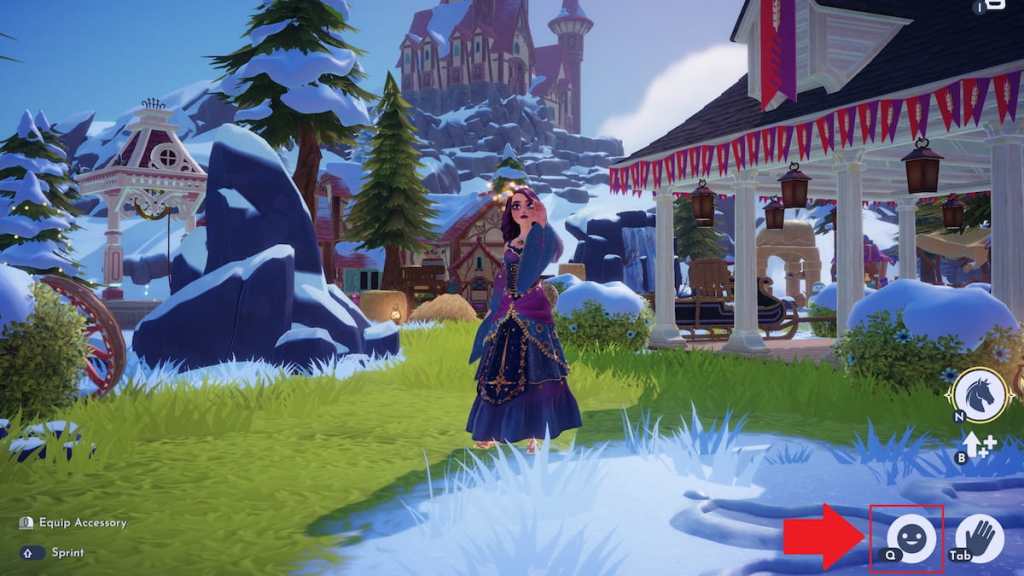
What button is the emote tied to on PC and consoles?
On PC it defaults to Q. On PlayStation, Xbox, and Nintendo Switch the icon shows the correct button; the UI places the controller prompt directly on the emote button so you’ll always see it when the wheel is available.
What does emoting do in Disney Dreamlight Valley?
People stop and stare when your avatar suddenly changes expression—that’s your in-game cue that something just happened.
Emoting makes your character perform a specific pose or expression, and nearby villagers react. That reaction varies by emote: Ralph might grumble at Angry, Olaf lights up at Happy, and other residents will mirror or comment on the gesture. It’s small, social physics—useful for screenshots, roleplay, or just breaking up the monotony while you wander between islands.
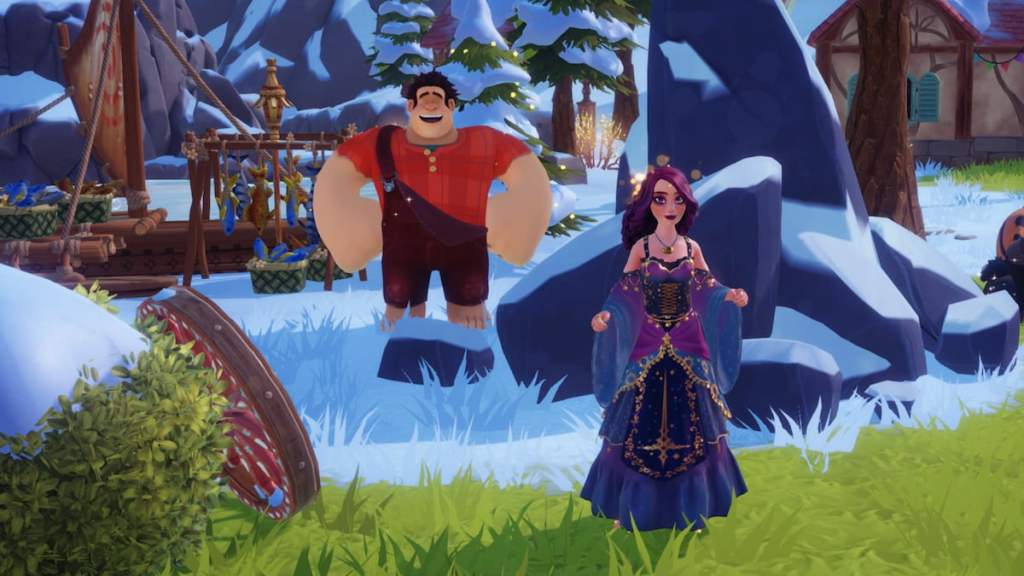
How to change emotes in Disney Dreamlight Valley
Watching someone fumble through a wheel of icons while a character stares awkwardly is a real-world hint that the system is simple once shown.
Press the emote button to bring up the wheel, then select a different slot to activate a new emote. The wheel has eight slots; think of each slot as one quick reaction you want ready while roaming. Select, confirm, and you’re back to exploring—no menu gymnastics required.
How many emotes can I have ready at once?
The wheel holds eight active emotes at a time. There are more than eight in the full collection, so you’ll swap favorites in and out depending on mood, screenshots, or which villagers you’re trying to provoke.
How to customize emote wheel in Disney Dreamlight Valley
It’s the same impulse you get when arranging bookmarks: you want the things you use most close at hand.
To customize the wheel:
- Press the emote button in the bottom-right.
- Select the “customize” prompt at the lower-right of the emote wheel; the button to press is shown on-screen per platform.
- Pick the slot you want to change, then choose the emote to place there. Repeat until the wheel reflects your preferred mix of reactions.
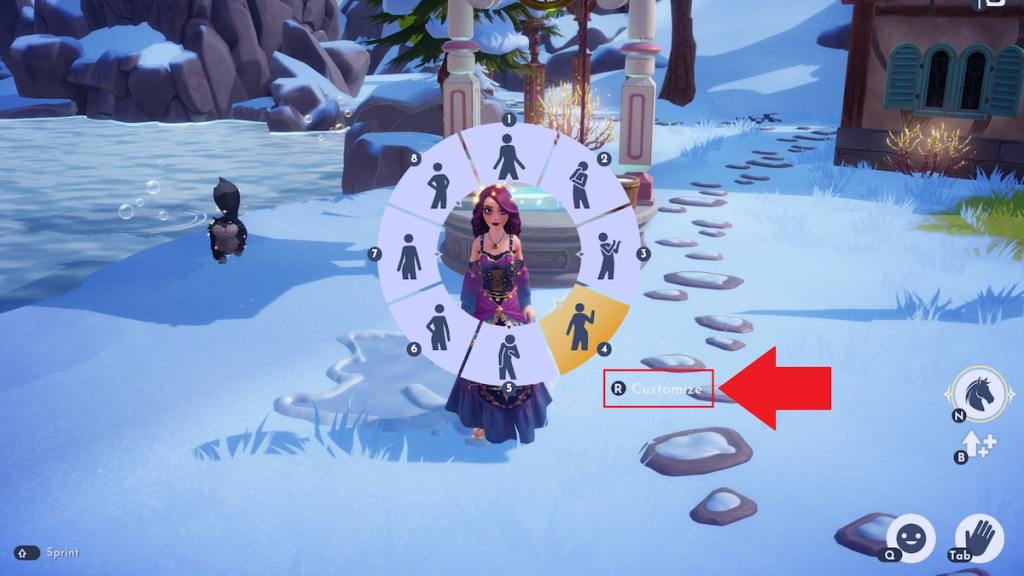
The emote wheel is a Swiss Army knife of expression. Using emotes turns the valley into a tiny stage for your avatar.
All emotes in Disney Dreamlight Valley
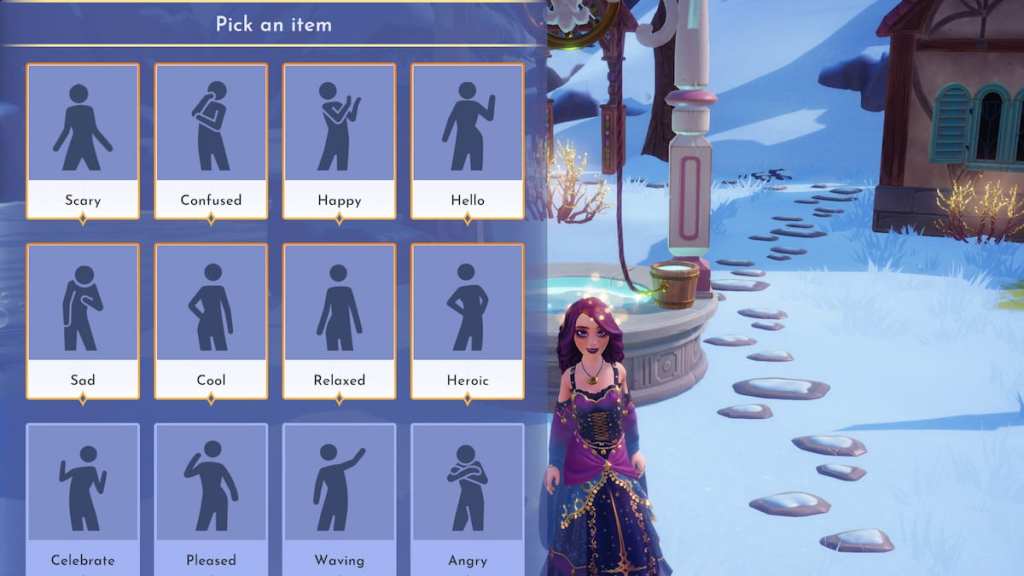
You’ll find the full emote list in the wheel’s library; I keep checking after every update because the roster grows.
As of this update, the game includes 12 emotes:
- Scary
- Confused
- Happy
- Hello
- Sad
- Cool
- Relaxed
- Heroic
- Celebrate
- Pleased
- Waving
- Angry
Once you’ve mastered the wheel, you can focus on other valley goals: the Astronomer’s Journey Star Path, Olaf’s Grand Exhibition rooms, adding Oogie Boogie to your guest list, or crafting décor presets. If you play on Steam, Epic, PlayStation, Xbox, or Switch, the mechanics are identical—only the button icons change—so you can switch platforms and keep your workflow.
Read what’s behind the latest news in gaming (with a bit of snark) by subscribing to the Moyens I/O Checkpoint newsletter!
So—will you keep the wheel full of celebratory poses or stock it with chaos-inducing gestures to rile up your favorite characters?