
We were five minutes from a ranked match when the lobby froze and the screen spat out Error Code 10. My friend swore it was their router; another blamed the game servers. I opened the network diagnostics and waited—because you have to act fast when a session dies mid-queue.
I write this as someone who’s spent hours sorting server logs, Steam threads, and forum posts so you don’t waste time guessing which fix matters. You’ll find every error code currently cropping up in Marvel Rivals Season 7.5, the most likely cause on each platform, and the exact steps that players and platform teams (Valve, NetEase, Microsoft, Sony) use to knock the problem down.
There are nights when every platform lights up with the same complaint — the game won’t connect
Below is the quick reference table I use when someone messages me with a screenshot. Keep it open while you try fixes; it saves time.
| Error Code | Meaning |
|---|---|
| 10 (also displayed as 5) | Server Connectivity Issues |
| 4 | Network-related Error |
| 21 | DNS-related Issue (Xbox) |
| 211 | Steam Issue |
| 2100 | Connection Error |
| 220 | Server Connectivity Issues |
On busy launch nights you’ll see clusters of players reporting the same timeout
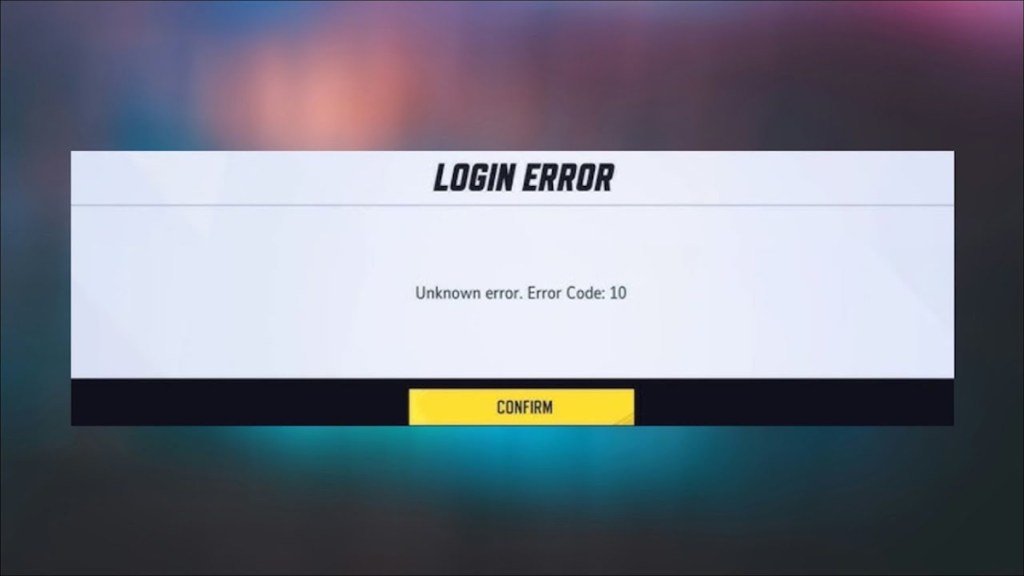
Error Code 10 (sometimes shown as 5) usually means the game cannot reach NetEase’s servers. That could be on their end, or it could be a flaky local connection. Here’s the checklist I run through:
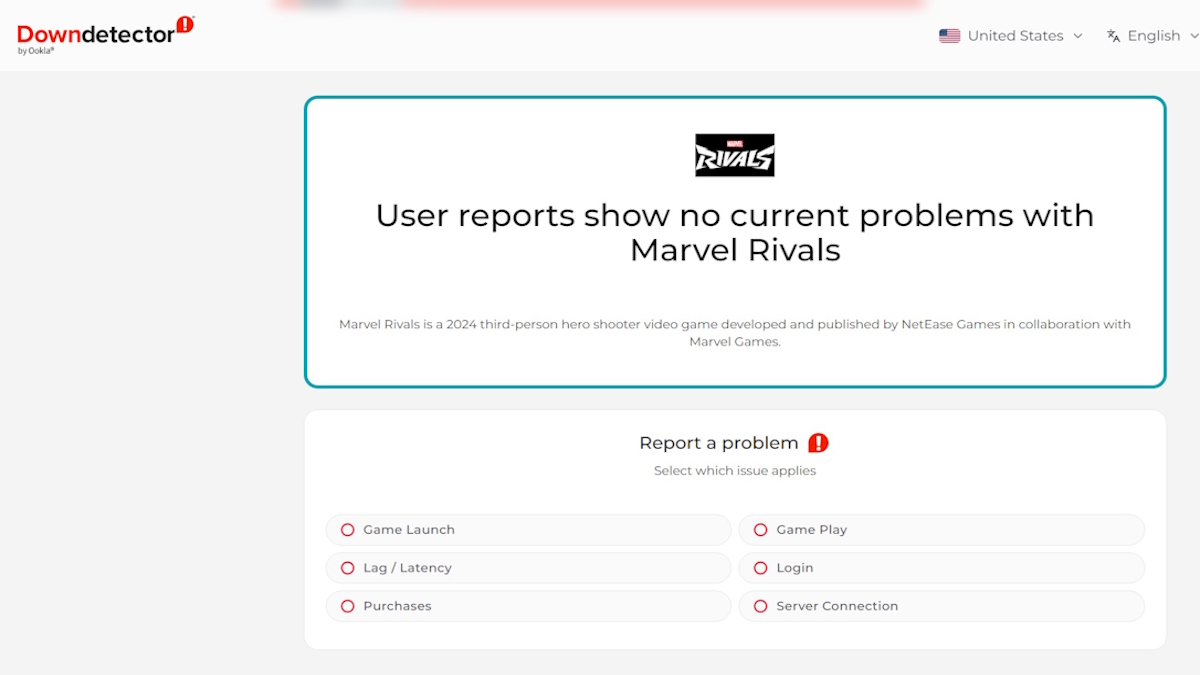
- Confirm server status: check Marvel Rivals’ official X (Twitter) feed and DownDetector. If Valve or Steam reports maintenance, wait it out.
- Restart hardware: reboot your router and your console/PC. A fresh DHCP lease often clears transient routing problems.
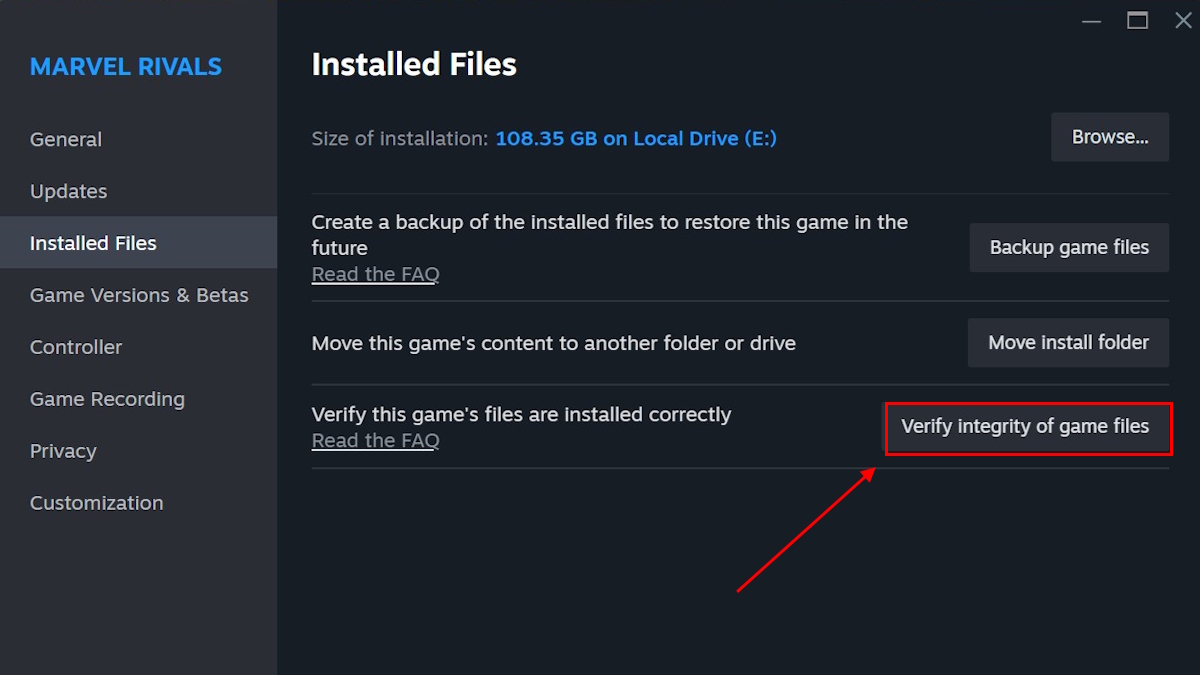
- Steam players: verify integrity of game files via Steam > Properties > Local Files (a fix that Valve support recommends for corrupted downloads).
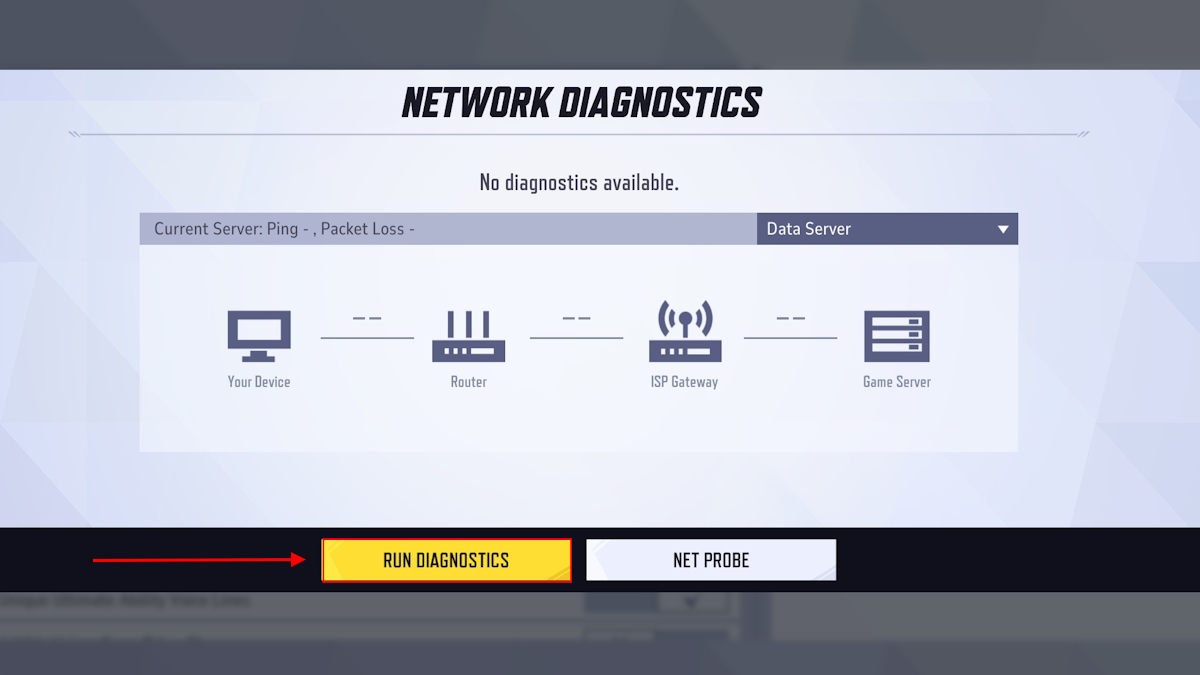
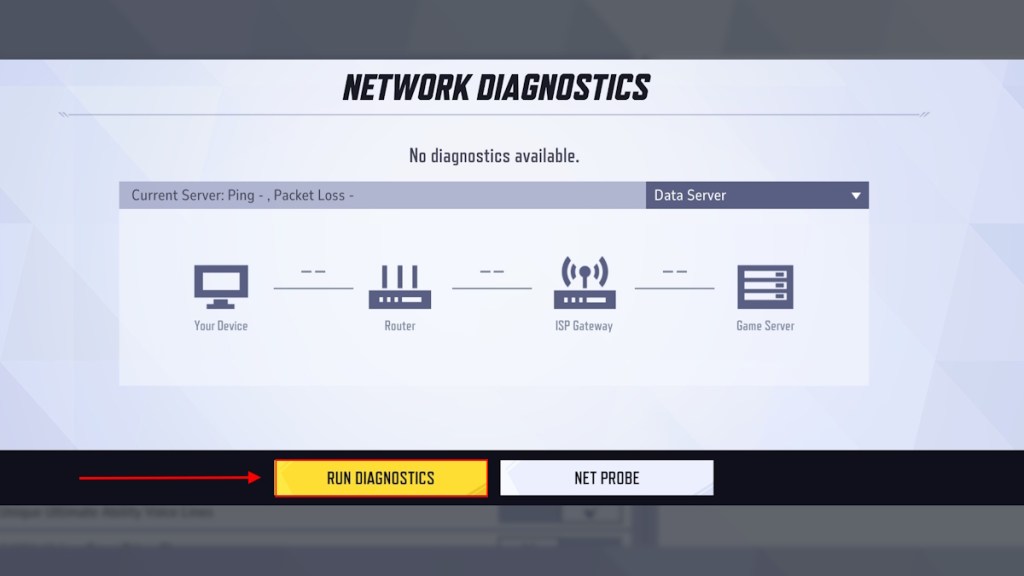
- Use the in-game Network Diagnostics and relaunch the game afterward—this is the fast, built-in test that clears many session errors.
Why do Marvel Rivals keep saying error code 10?
Because either NetEase’s servers are under strain or your connection can’t maintain a stable session. Start with the server-status checks (NetEase, Steam status pages) and then move to local fixes—restart, diagnostics, and file verification.
When a PlayStation party goes quiet, consoles are usually the common denominator
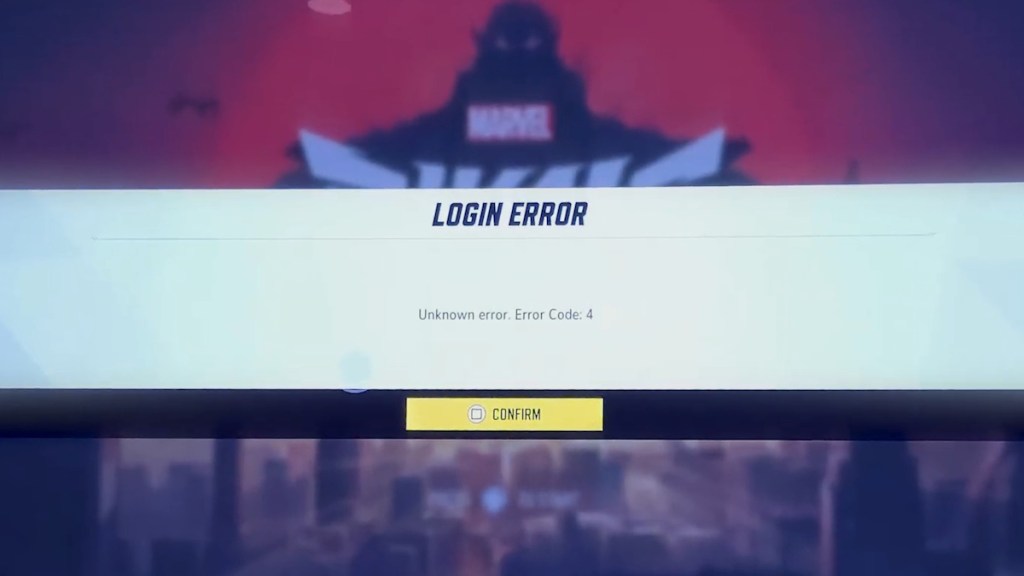
Error Code 4 is most commonly reported on PS4 and PS5 and points to a PlayStation-side network hiccup. If you’re on Sony’s hardware, try these steps in order:
- Update the game from the PlayStation store — some players hit this during mid-session updates.
- Fully close the app and restart it; a cold relaunch clears stale sessions.
- Toggle your Wi‑Fi off and on, or switch to a wired connection if possible.
- Check the PlayStation Network status page; if Sony is handling maintenance, your only option is to wait.
What’s Marvel Rivals error code 4?
It’s a PlayStation network error. If PSN is healthy, the two fastest fixes are a game update and a connection reset.
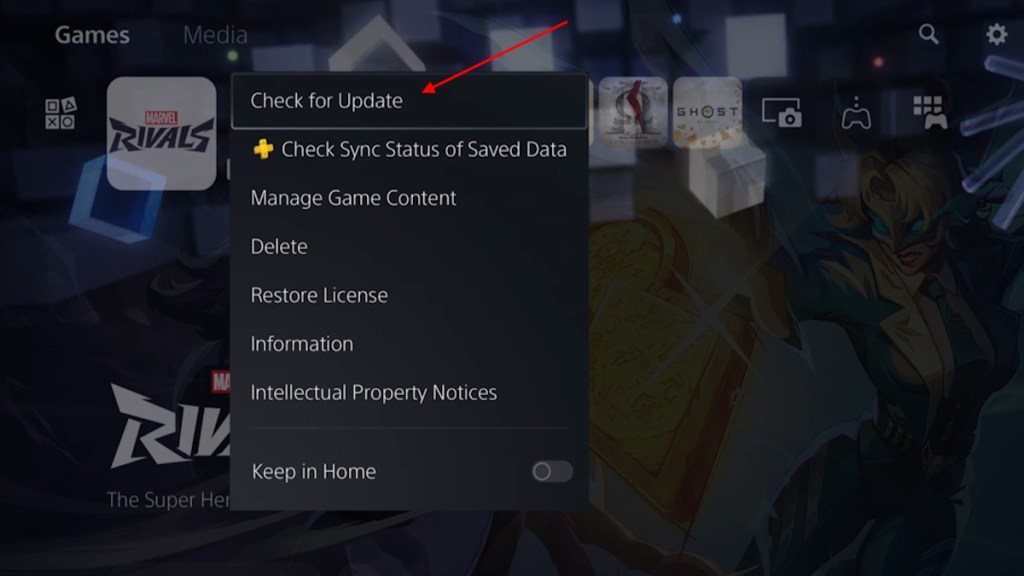
Xbox players often spot DNS quirks during peak hours
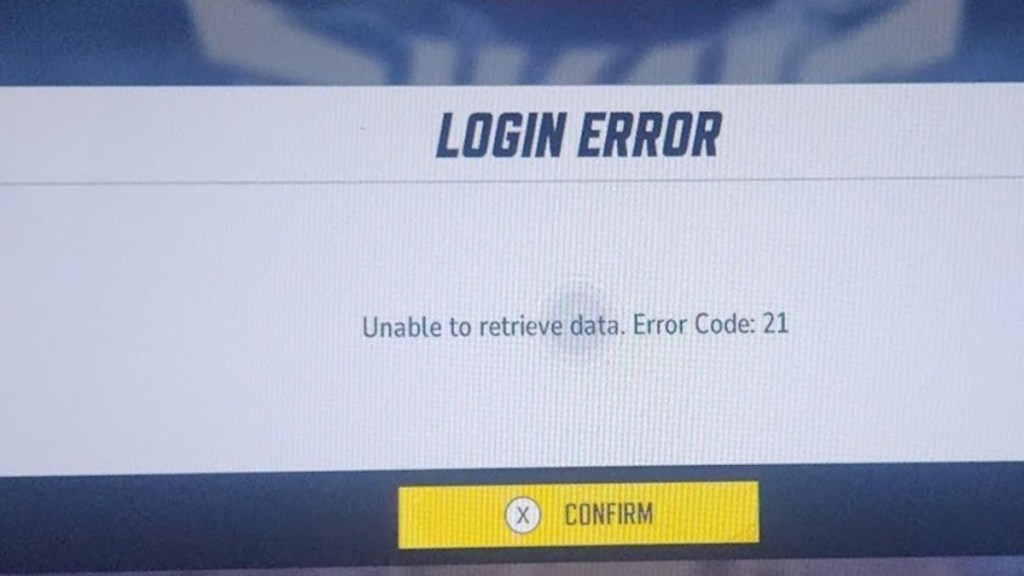
Error Code 21 on Xbox usually traces to DNS or routing problems. These fixes have helped players regain cross-progression and matchmaking:
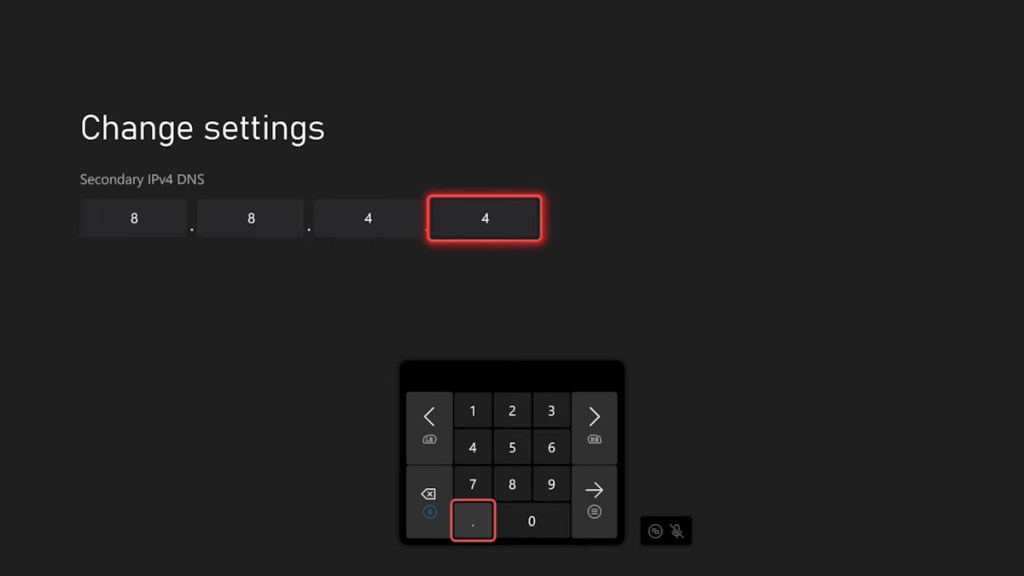
- Change the DNS in Xbox Network settings — swap 8.8.8.8 for 8.8.4.4 or try Cloudflare’s 1.1.1.1.
- If you use a phone hotspot, try connecting the Xbox through it (with VPN active on the phone if that’s your usual setup).
- Restart the game; if failures persist, reinstalling has cleared corrupt installations for some users.
When Steam shows a maintenance banner, your whole PC party is affected
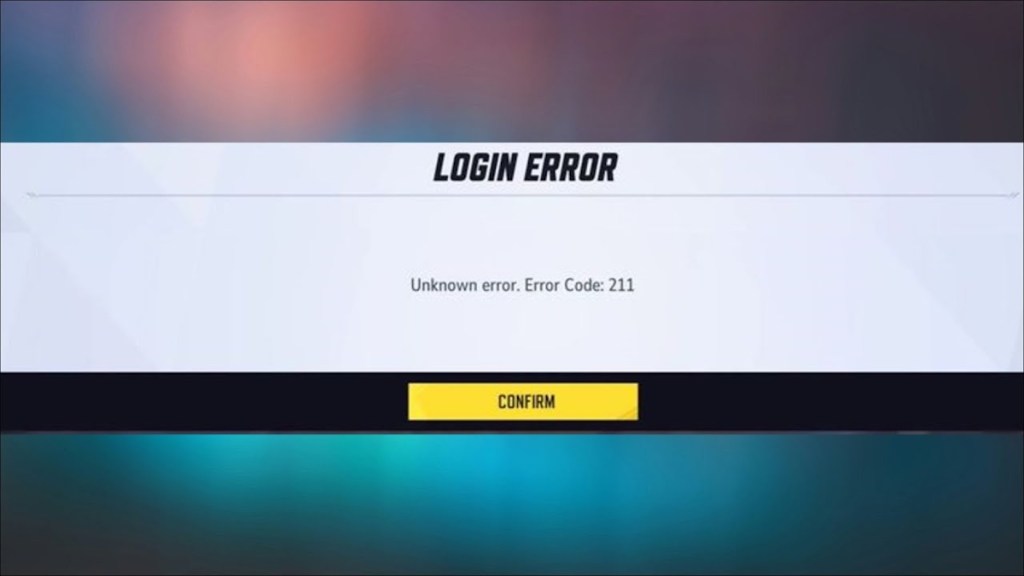
Error Code 211 is simple: Steam-side maintenance or outages. Valve schedules periodic backend updates that can interrupt matchmaking and sign-ins.
- Check Steam’s status page or the Steamworks announcements. If Steam is down, all you can do is wait.
- For Steam Deck users, rebooting the device after Steam services return has resolved reconnect failures.
You’ll notice error 2100 the moment a login loop prevents you from hitting Times Square
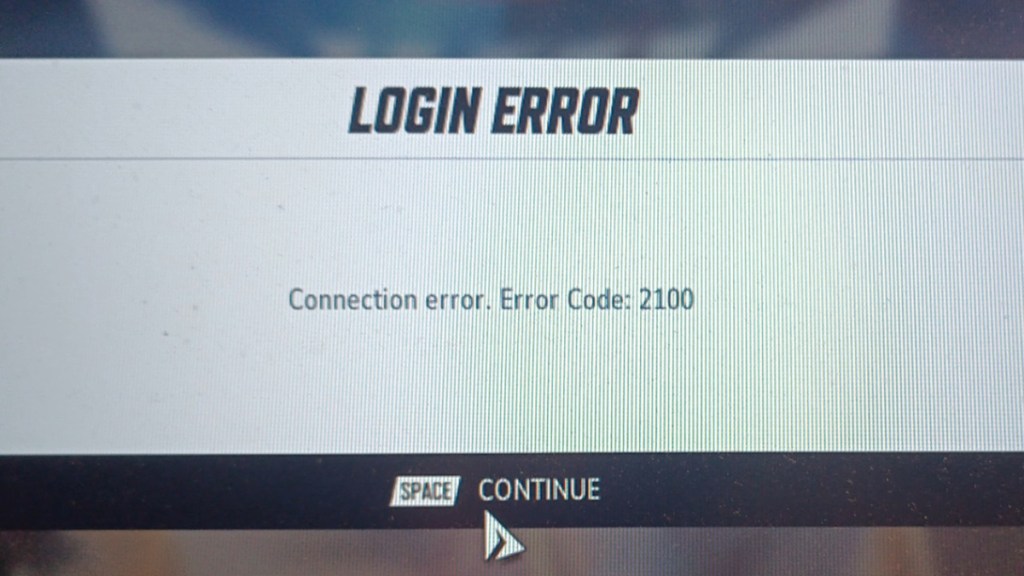
Error Code 2100 blocks logins across platforms. The two fixes players report most often:
- Run Network Diagnostics from the in-game settings, then fully close and relaunch the client.
- Reboot your console or PC if diagnostics didn’t fix it — a system restart often clears stuck auth tokens.
How to fix Marvel Rivals error code 2100?
Run the in-game Network Diagnostics, then restart the app or device. If the problem persists, check NetEase’s social channels for server notices.
When every app on your PC stalls, you should suspect local network or security tools
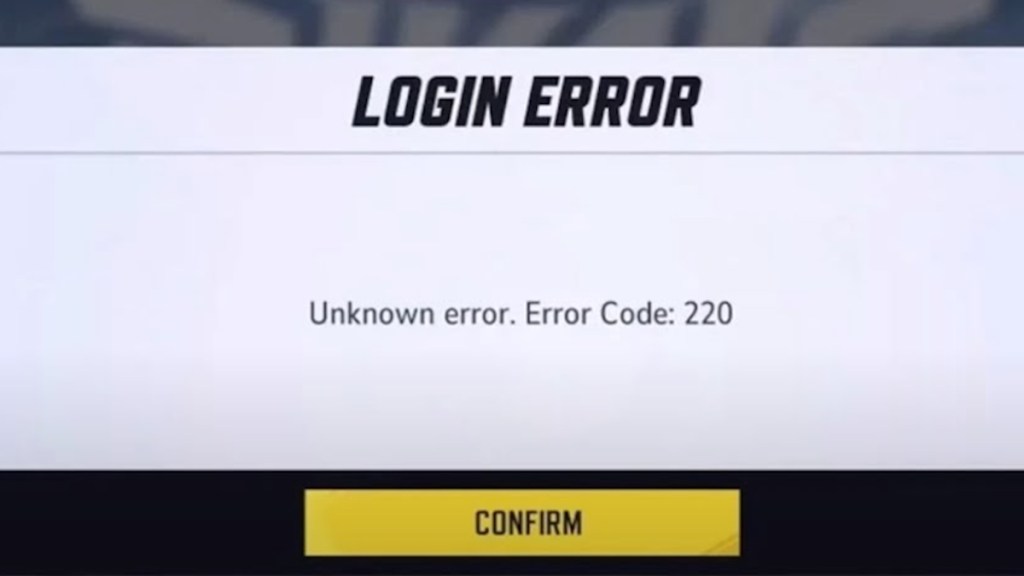
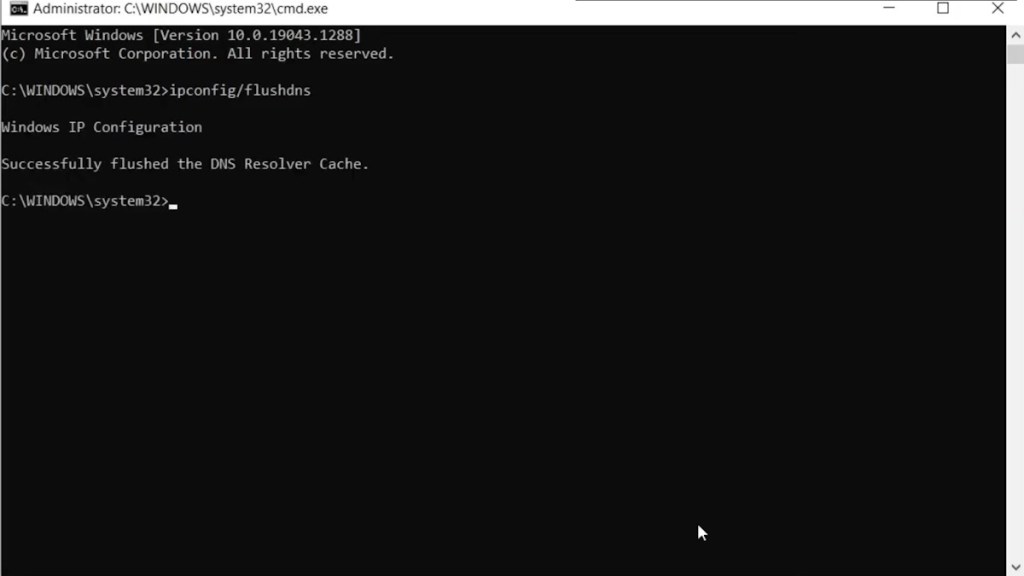
Error Code 220 is an unknown error that usually ties back to the network stack or security software on your machine. When programs block a game, the symptoms can be like a clogged artery — traffic can’t get through.
- Flush your DNS cache (Windows: ipconfig /flushdns). This clears stale records that can misroute traffic.
- Temporarily disable antivirus or add Marvel Rivals to the exception list; some security suites quarantine game files or block outbound ports.
- Try different DNS servers (Google, Cloudflare) and restart the client.
- If nothing works, briefly disable your firewall to see if it’s the cause, then re-enable it with a rule set for the game.
The developers at NetEase and platform teams (Valve, Microsoft, Sony) patch known issues each season, and many errors disappear after an update. If you see a new code that’s not listed here, post the exact number and your platform — I’ll follow up with targeted fixes and testing steps.
What can I do if none of these fixes work?
Collect these details before you reach support: platform (Steam/Xbox/PS), exact error code, time of occurrence, any recent game update, and results of Network Diagnostics. Share logs or screenshots with NetEase support or the platform help centers to speed troubleshooting.
One last thought: when a session dies mid-queue, is it a server problem, a local fault, or bad timing—what’s your bet?