
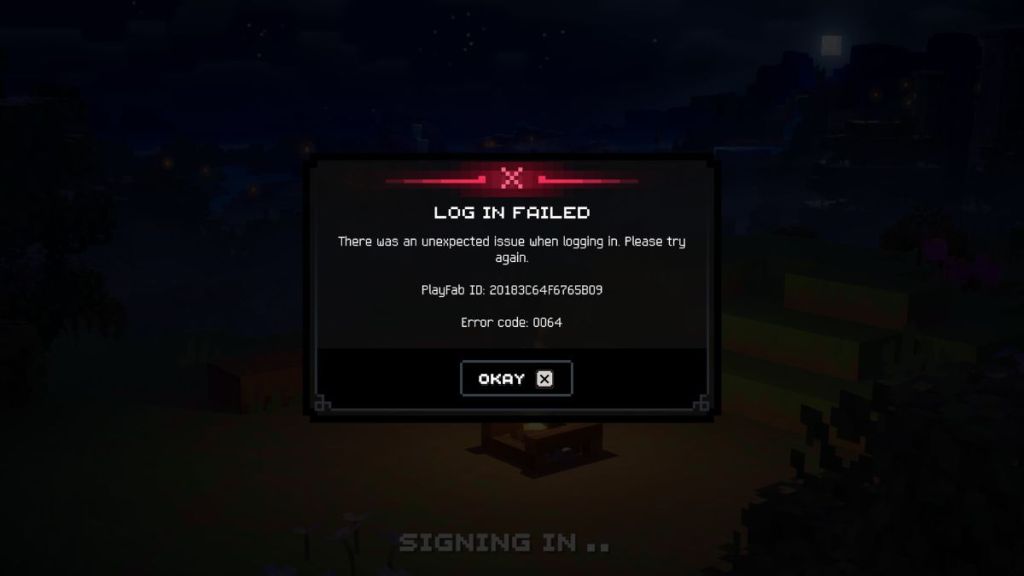
I hit Play, waited, and watched the launcher pause on a frozen spinner. You’d expect to drop into Minecraft Dungeons 2; instead error code 0064 stared back. That small line of text can stop a whole evening of co-op plans.
Observation: many players see error 0064 the moment the game tries to sign you in
I’ve dug through forums, patch notes, and a pile of error reports from Steam and Xbox players — and I’ll walk you through practical checks that actually work. You don’t need to try everything; work down the list until the game lets you in. I’ll point out what to try first, why it matters, and when a reinstall is the only clean answer.
Observation: the Minecraft Launcher is often the first thing to break
If the Launcher is corrupted or hung, authentication with Microsoft/Mojang can fail and throw error 0064. Start here — it’s quick and non-destructive.
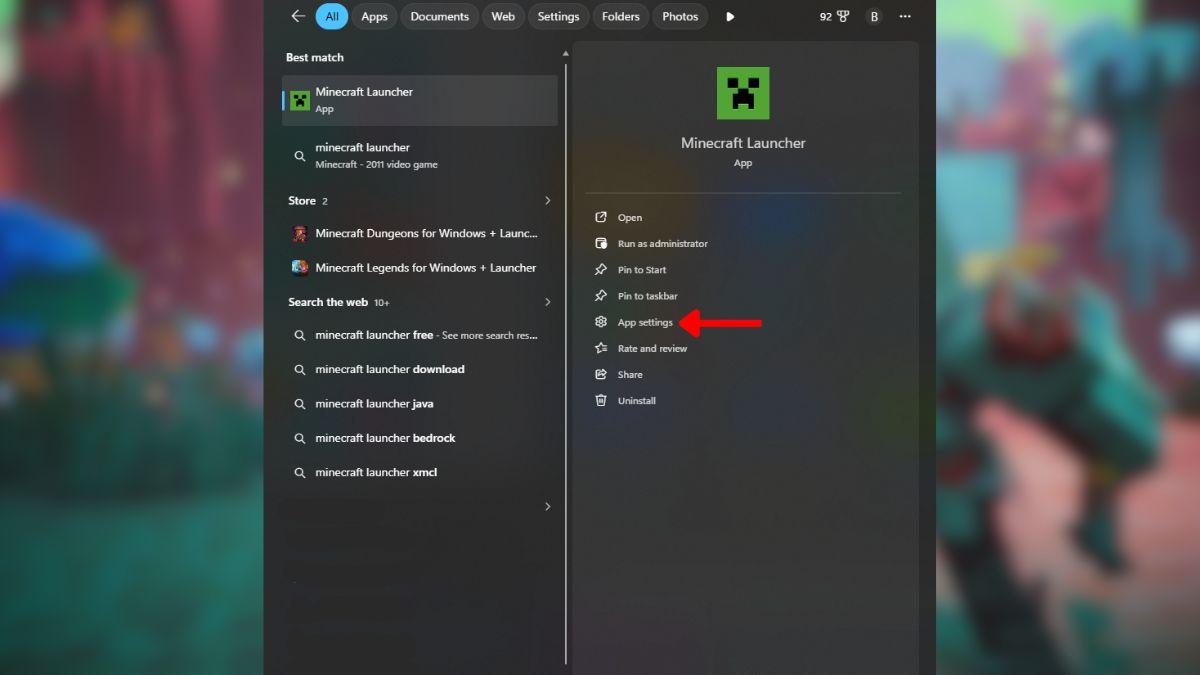
- Open Windows Search and type Minecraft Launcher.
- Right-click the Launcher, choose App Settings.
- Click Terminate to stop any background processes, then hit Repair.
- Relaunch the Launcher and try Minecraft Dungeons 2 again.
Observation: system clock errors still break online sign-ins
Authentication tokens check timestamps. If your Windows clock is off, Microsoft’s servers may reject the login and produce error 0064.
How do I sync my Windows clock?
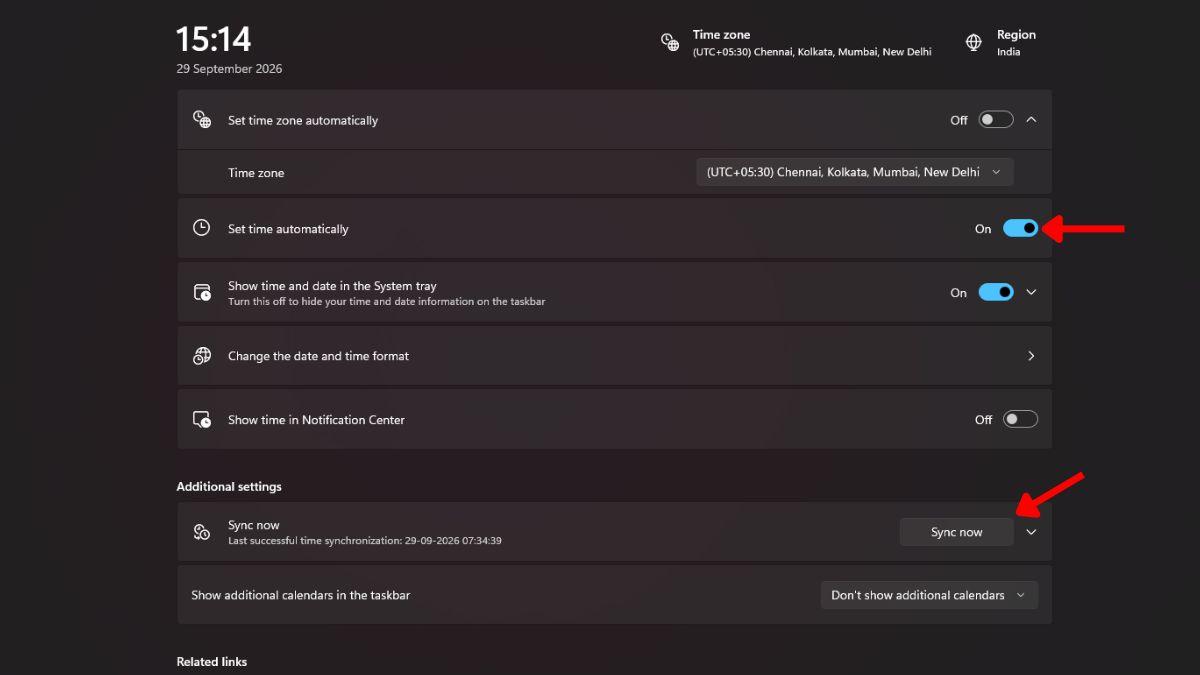
- Open Change the date and time from Windows Search.
- Set the correct Time Zone or toggle Set time automatically.
- Under Additional settings, click Sync now and wait for confirmation.
- Restart the Minecraft Launcher and try again.
Observation: session tokens can expire or go stale
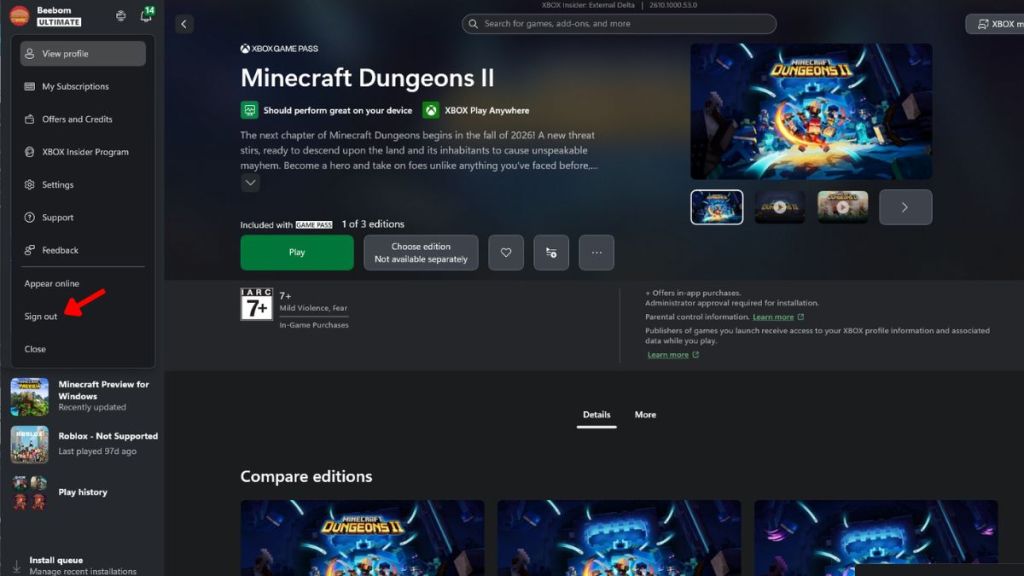
Signing out and back in forces the Launcher to issue fresh tokens from Microsoft. This often clears the login failed screen tied to error 0064.
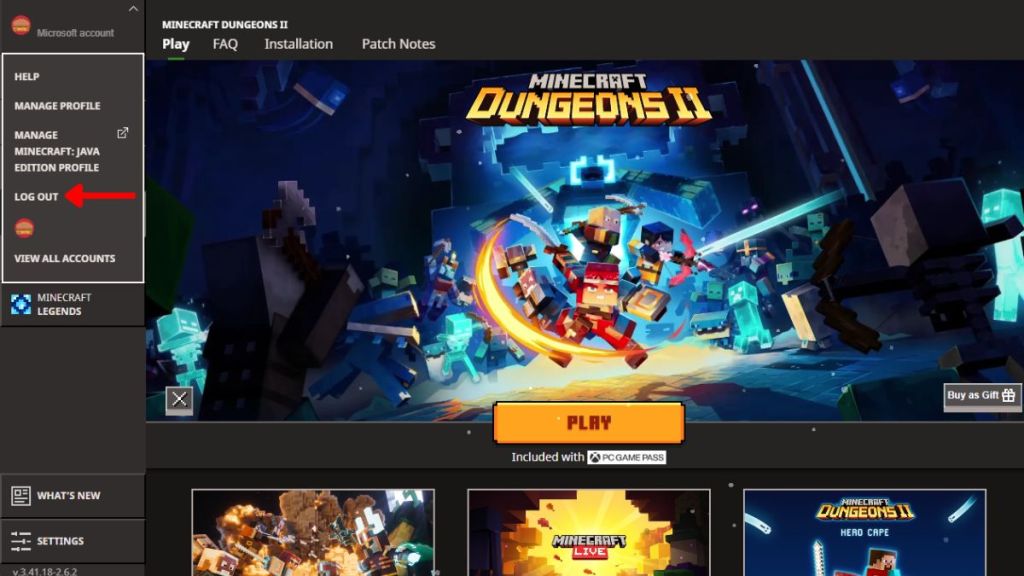
- Open the Minecraft Launcher and click your profile in the top-left.
- Select Log Out, then sign back in with the same Microsoft account used to buy or access the game.
- If you use Xbox Game Pass on PC, confirm the same account is signed into the Xbox app.
Observation: many players launch the game via Xbox Game Pass or Steam
That mix of platforms creates extra touchpoints where sign-in can fail — Microsoft Store, Xbox app, Xbox Game Bar, Steam, and the desktop Launcher all need to agree on your account identity.
Why does Minecraft Dungeons 2 show error code 0064?
Short answer: an authentication hiccup between your Launcher, Microsoft account, and the Xbox services. It can be caused by a corrupted Launcher, wrong system time, mismatched accounts across platforms, or a problem with how Steam links to your Microsoft/Xbox account.
Observation: the Xbox app and Game Bar are small pieces that matter
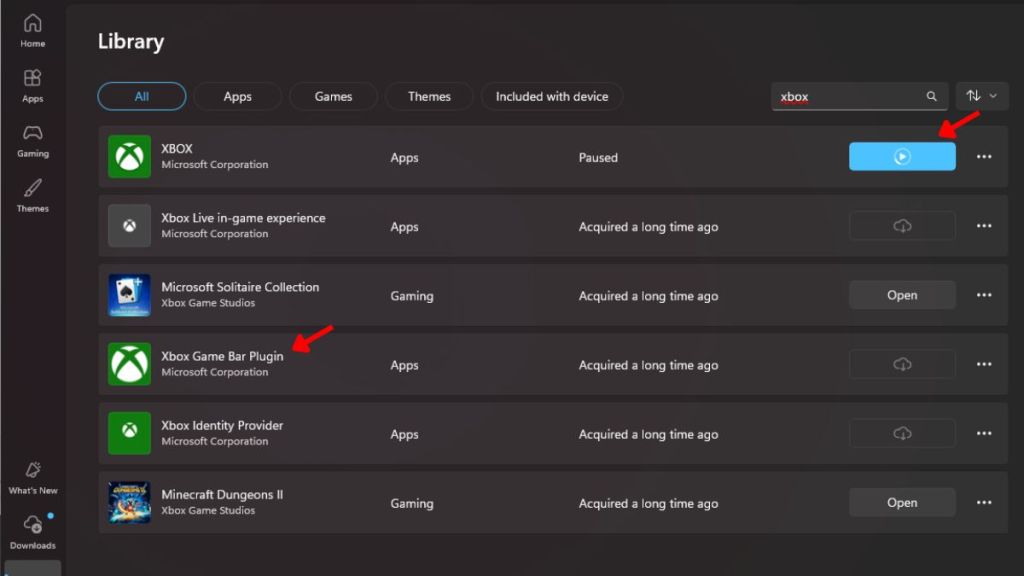
Outdated Xbox components can break sign-in flows for Game Pass users.
- Open the Microsoft Store and check for updates to Xbox and Xbox Game Bar.
- Install updates, restart Windows, and try the game again.
Observation: Steam players must connect a Steam account to Xbox/Microsoft
If you bought the Steam version, the game still needs a Microsoft/Xbox identity for online features. A missing link can produce error codes 0064 and 0029.
- Open the Xbox app and confirm you’re signed into the same Microsoft account shown in Steam’s account linking screen.
- If prompted by Steam to link accounts, follow the on-screen flow so Mojang/Microsoft recognizes your Steam purchase.
Observation: running games as administrator can change how authentication behaves
Some users launch with elevated rights and then see account-linking errors. Try running the Launcher and the game as a normal user first.
- Right-click the Minecraft Dungeons 2 executable, select Properties → Compatibility, and make sure Run this program as an administrator is unchecked.
- Start the game without elevation and test sign-in.
Observation: corrupted files are rare but they do happen
When everything else has failed, a clean reinstall removes old, broken files. Think of error 0064 like a jammed lock on an otherwise fine door — sometimes you need to remove the lock and fit a new one.
Will reinstalling fix error code 0064?
Often yes. Reinstalling replaces corrupted game files and forces the Launcher to re-register the game with your account.
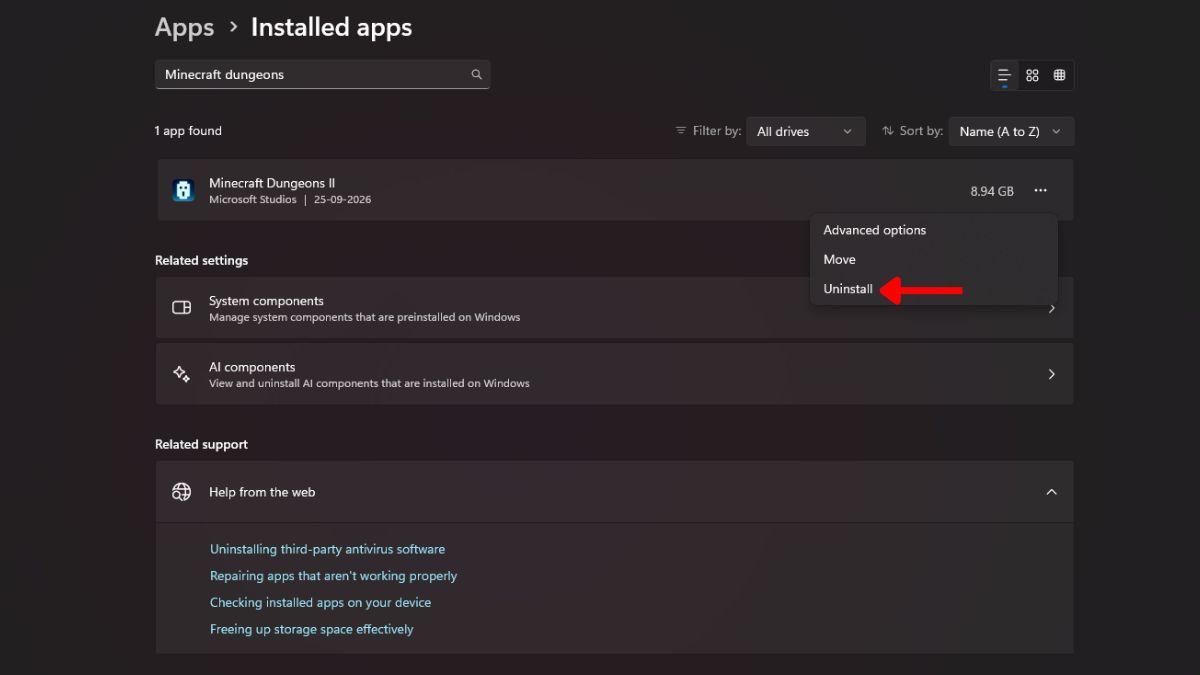
- Open Add or Remove Programs via Windows Search.
- Find Minecraft Dungeons 2, click the three dots, and select Uninstall.
- Open the Minecraft Launcher and reinstall the game from your library or the Microsoft Store / Steam.
Observation: some problems trace back to account mismatches across services
When Steam, Xbox, Microsoft Store, and the Launcher each show a different identity, sign-in fails. Link accounts deliberately and verify which one owns the game.
- Check your purchase source: Steam users must link to Microsoft/Xbox; Game Pass users must use the Xbox app account.
- If you see an unfamiliar account in the Launcher, log out and sign back in with the correct one.
- Contact Microsoft Support or Mojang if the purchase record doesn’t match your accounts.
If you’ve worked through the list and error 0064 still blocks you, file a support ticket with Microsoft/Xbox and attach screenshots of the Launcher and Xbox app. Reinstalling rarely fails to change the outcome, but the support channel will check back-end entitlements tied to your Microsoft ID.
One last tip: when you try fixes, make only one change at a time so you know what fixed it — tracking results is how you win fast. Reinstalling can feel like chiseling away at a stubborn boulder, but it’s often the quickest path back to play — which method will you try first?