
The chase started smooth, then the world juddered—Batman’s motorcycle froze mid-turn while a dozen neon Lego bricks rattled. I slammed Alt+Tab and felt the same sharp sting: performance stealing immersion. You don’t need to accept those interruptions.
I’ve been live-testing LEGO Batman Legacy of the Dark Knight since day two of advanced access. I’ll tell you what I run, why, and the few switches that kept Gotham playable on my rig.
- RAM: 16 GB DDR5
- CPU: Ryzen 7 5700X (my coiled spring ready to roar)
- GPU: (listed) Ryzen 9060XT
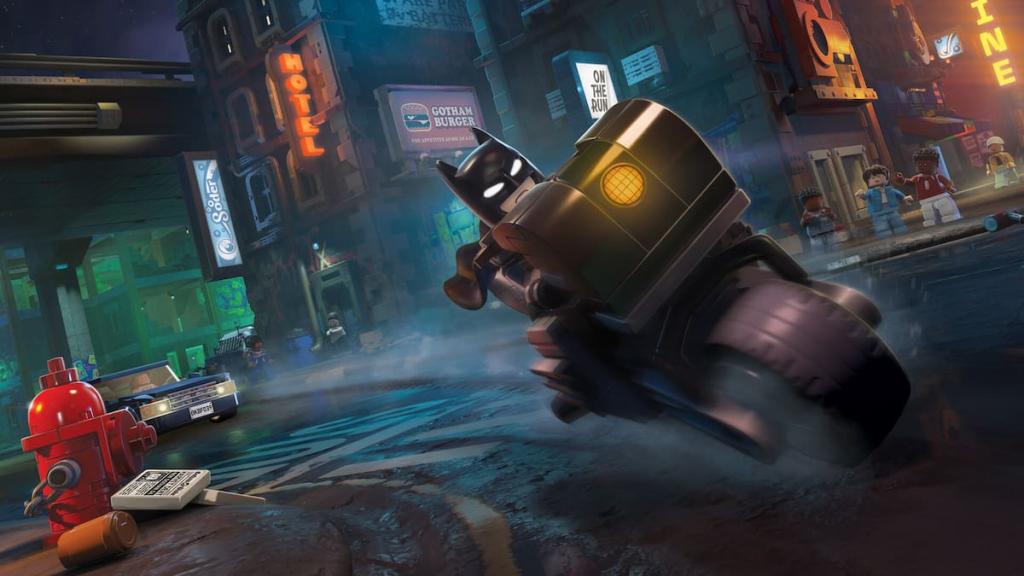
I noticed frame dips whenever traffic clustered in downtown Gotham. Best LEGO Batman Legacy of the Dark Knight graphics settings
Use these settings to stabilize frame pacing and keep motion smooth. I test on Windows, with Radeon and NVIDIA drivers current, and I run Steam overlay off when I’m chasing small margins.
- Window Mode: Fullscreen — even if you use multiple monitors, fullscreen cuts background GPU overhead.
- VSync: Off — leave it off unless you see tearing; if frames bounce wildly, try toggling it on for comparison.
- Frame Rate Limit: 60 FPS — Unlimited introduced micro-stutters for me; a 60 cap keeps pacing steady.
- Resolution: Native monitor resolution.
- Anti-Aliasing: Off.
- Upscaling: Off by default — enable NVIDIA DLSS or AMD FSR only if you need extra FPS at the cost of some detail.
- Frame Generation: Off — you can test DLSS Frame Generation (NVIDIA) or FSR 3 (AMD) to raise frame counts; they trade fidelity for smoothness, and Frame Generation is a magician’s sleight, smoothing motion at the cost of some texture detail.
- Quality Presets: Custom.
- Lighting Quality: High.
- Shadows: Medium.
- View Distance: Far.
- Streaming Distance: Far.
- Textures: Medium.
- Anisotropic Filtering: 8x.
- Material Quality: Medium.
- Distance Field Ambient Occlusion: Off.
- LEGO Mesh Quality: Medium.
- Effects: High.
- Reflections: Medium.
- Post Processing: High.
- Population Quality: Medium.
What graphics settings give the best FPS in LEGO Batman Legacy of the Dark Knight?
Drop Shadows, Textures, and Population Quality one notch each if you need headroom. If you play on an NVIDIA GPU, try DLSS with Performance mode; AMD users should test FSR 2/3 where available. Keep Ambient Occlusion and high-resolution shadows off if you want big FPS gains.
I saw the game’s hitching disappear after I capped the framerate. Tuning tips and troubleshooting
If stutters persist, you want methodical cuts: reduce any “High” to “Medium,” and any “Medium” to “Low” until pacing returns. I recommend testing one change at a time and using tools like MSI Afterburner, Radeon Software, or NVIDIA’s GeForce Experience to monitor GPU/CPU usage while you play.
How do I stop stuttering in LEGO Batman Legacy of the Dark Knight?
Check background tasks (Steam, Discord overlays, recorders). Keep drivers updated, set power profiles to Performance in Windows, and put the game in Fullscreen. If disk streaming causes hitching, move the game to an SSD or lower Streaming Distance. Tuning Texture and Mesh Quality helps if VRAM is saturated; use Radeon Software or NVIDIA Control Panel to cap GPU utilization if thermals cause throttling.
Does frame generation help performance?
Yes and no. Frame Generation boosts apparent FPS by synthesizing frames (DLSS Frame Generation on NVIDIA, FSR 3 on some AMD setups), which can make motion feel smoother. It does so by predicting intermediate frames, and that prediction can soften detail. Try it if the game struggles to reach your display’s refresh rate, but compare results visually before committing.
I’ve seen improved stability with these settings during advanced access, and patches from Warner Bros. Games and middleware updates (NVIDIA, AMD) may shift the sweet spot. Want to argue whether a 60 FPS cap is better than chasing 120+ with frame generation on—what side are you on?