
I slammed the cockpit door and the console spat back cryptic beeps. For a second the instrument panel looked like a crossword of levers and numbers, and I felt time compressing—Earth was counting on whoever could read it. You can do this; I’ll show you the exact steps so you stop guessing and start drilling.
Where to find coordinates in MOLE
The cockpit feels overcrowded at first, like every switch is arguing for attention.
You get coordinates two ways, but the one you need immediately is the Navigation Cassette routine. Sit in the Cockpit, turn left to the terminal with a cassette slot, insert the Navigation Cassette, then pull the lever to upload seismic data. Watch the upload bar until it hits 100 percent, then remove the cassette.
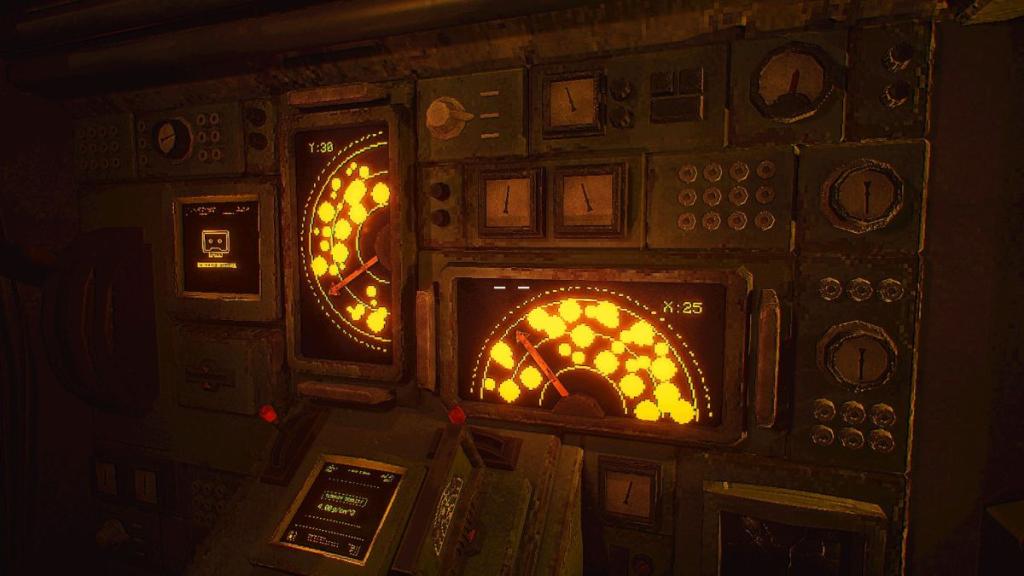
Turn to the opposite terminal and hit Spacebar to decrypt the file. After decryption, put the Navigation Cassette into the left-wall main console (the one with two small levers). You’ll see two displays above the levers: match each lever to the empty channel on the display and use the arrow to aim a straight path through open grid spaces—avoid the rock clusters shown. That arrow gives you the Y and X numbers. Pull the red handle at the pilot seat and type both numbers into the keypads.
How do I find coordinates in MOLE?
Follow the cassette → decrypt → set levers → read arrow workflow. It’s the fastest loop for daily expeditions and works with the Steam build and most patch versions reported on Moyens I/O forums.
How to pilot the drill and what speed to set it to
You’re sitting at the pilot seat and the world beyond the viewport is one unreadable texture strip.
After entering coordinates, return to those two small levers to capture the drill speed from the Terrain Density display. The pilot seat has a ground density chart (g/cm³) beside it—use that chart as your conversion reference. If the chart doesn’t match the density exactly, nudge the speed to the nearest safe value shown on the chart and record that setting for each new coordinate set.
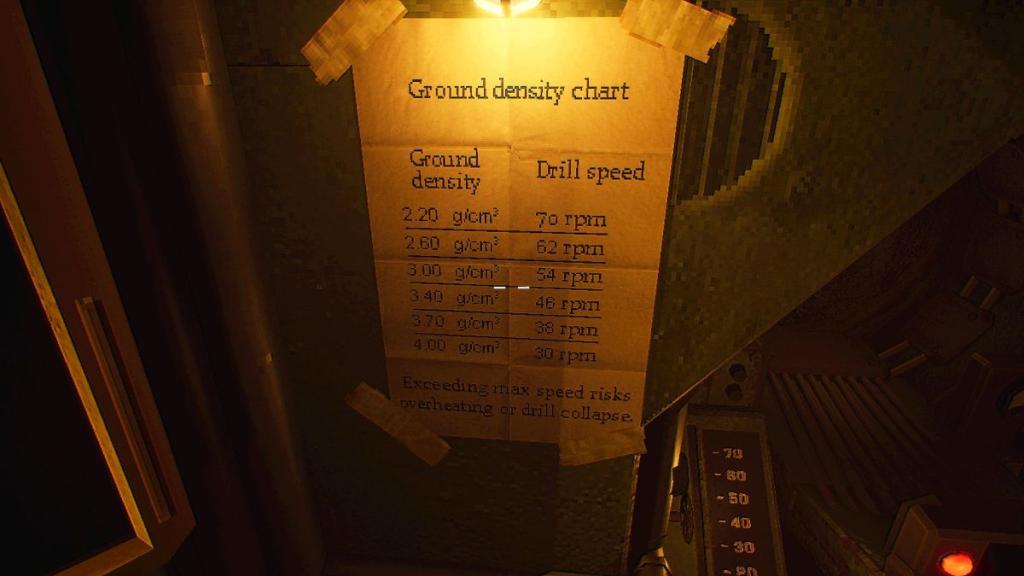
Return to the pilot seat. Set the red lever on the left to your chosen speed, then use the navigation stick on the right to steer. Line the piloting circle with the stationary destination circle by following the arrow on the ahead grid. When the alignment prompt allows, flip the Auto button to let the system finish the run.
How do I set drill speed?
Use the Terrain Density display, convert with the g/cm³ chart, and set the red lever. Think of it as matching tempo: too slow wastes time, too fast tears the drill—practice makes the right thumb pressure reliable.
How to use cassettes to plot a course
The Lab on day two changes the way you read signals; the room will feel like a small radio station.
There are two cassette types that matter: the Navigation Cassette (seismic coordinates) and the Targeting Cassette (signal frequencies). The Targeting Cassette only becomes useful once the Lab opens on day two. Grab the crystal from the Geologist’s workstation and place it on the motherboard under the monitor that displays the White Rabbit Signal.
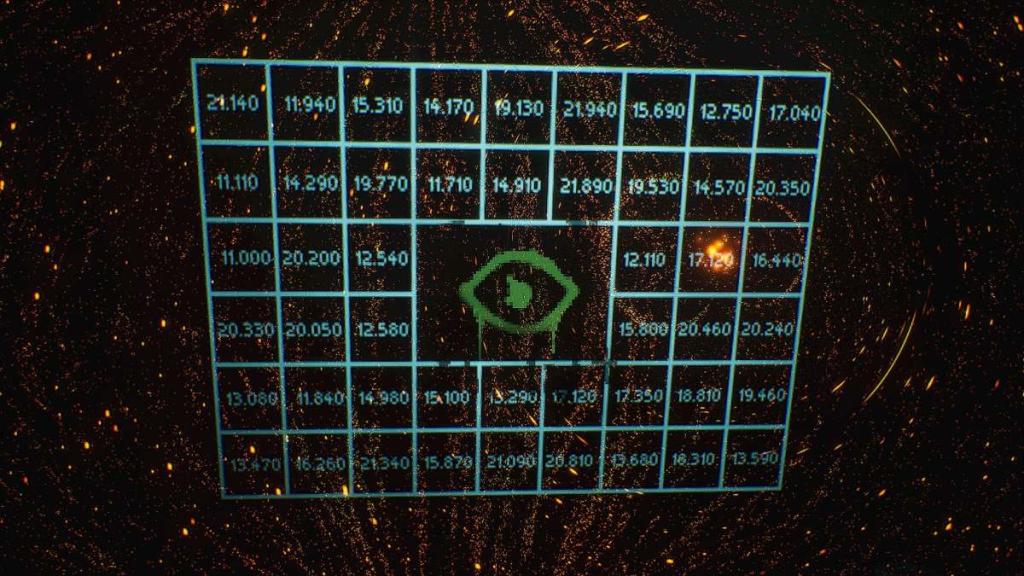
Turn off the lights and interact with the White Rabbit Signal; stare until the beams form a ring in your vision. While the lights are still off, use the wall grid behind you to read the radio frequency. Switch the lights back on, insert the Targeting Cassette into the radio, set the top knob to the frequency’s first two digits and the bottom knob to the remaining three digits, then pull the small lever with the red light to tune.
How do cassettes plot a course?
After tuning, go back to the Cockpit terminal. Select three .xyx files (press Space to select, then press Enter twice) to convert the frequency into coordinates. Once converted, return to the Navigation Cassette routine and use those numbers as your new destination inputs.
I’ve walked you through the cassette loop, the conversion charts, and the pilot controls so you don’t waste cycles guessing. If you want, compare notes with reports on Steam threads and Moyens I/O guides to see how different players tune for rare deposits—what have you tried that worked better?