
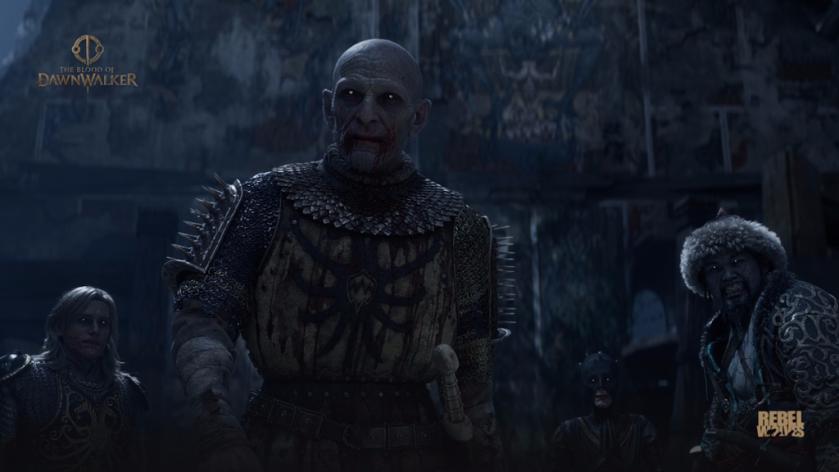
I watched my frame rate crater to 22 the instant Brencis vaulted into the arena. I had two minutes to stop the stutter, locate the guilty settings, and get back into the fight. I’ll show you which switches to flip so you can stay alive when the next heavy scene lands.
Best The Blood of Dawnwalker graphics settings
On my 27-inch 1440p monitor the first castle courtyard dropped from buttery to shuddering the moment the fog rolled in. That taught me a simple rule: not every setting costs the same, and a few changes buy the largest FPS gains.
I use this rig while testing:
- AMD Ryzen 7 5700X
- AMD Radeon 9060XT 16 GB (roughly $350 / €330)
- 32 GB DDR4 RAM
If your machine is near the minimum specs, focus on the items below. If you’re on a high-end card or an RTX 40/50-series GPU, you can nudge a couple of sliders back up and still keep frame-rate headroom.
- Resolution: Use your monitor’s native resolution.
- Screen: Fullscreen for lowest input lag.
- Light Quality: Low (set to High only on high-end rigs).
- Shadow Quality: Low — shadows are deceptively expensive.
- Reflections Quality: Low — reflections tank performance in big scenes.
- Post-Processing: Medium; drop to Low if you notice stutters.
- Texture Quality: Low to start. Increase slowly and test VRAM usage—textures chew memory fast.
- Effects Quality: Medium or Low depending on how busy combat feels.
- Shading Quality: Low — big FPS win.
- Foliage Quality: Medium; reduce to Low in dense outdoor areas.
- Detail Quality: Low.
- Volumetric Quality: Low — fog and volumetrics hit both GPU and CPU hard.
Keep upscaling active. Pick the algorithm that matches your GPU: FSR (AMD), DLSS (NVIDIA), or XeSS (Intel). Favor Performance presets over Quality when your goal is steady FPS—the perceptual loss is smaller than the frame-rate gain, and playing at a stable 60+ is worth the trade.
How do I get more FPS in The Blood of Dawnwalker?
Drop shadows, reflections, and volumetrics first. After that, lower textures if VRAM is pegging. If you use an AMD card, toggle FSR Performance; on NVIDIA use DLSS Performance. Small changes to these three areas move the needle more than fiddling with anti-aliasing or ambient occlusion.
When to push visual fidelity and when to pull it back
During a long open-area run I noticed my VRAM meter flirting with 98%. That’s your cue to step down texture and foliage levels.
Think of balance like a dimmer switch: turn up the things you actually see at eye level (textures, post-processing) and dim the background costs (shadows, volumetric). If you want better-looking skies, accept slightly lower foliage; if combat clarity matters most, favor Effects and Shading over fancy shadows.
What graphics settings should I use for The Blood of Dawnwalker?
For a general-purpose, high-FPS profile aimed at 60+ FPS on mid-range hardware:
- Textures: Low–Medium (watch VRAM)
- Shadows/Reflections/Volumetrics: Low
- Post-Processing: Medium
- Effects/Shading: Low–Medium
- Foliage: Medium
- Upscaling: Performance preset (FSR/DLSS/XeSS)
Frame-rate tools, driver notes, and quick diagnostics
When I ran benchmarks, MSI Afterburner and the Steam overlay were the fastest way to spot bottlenecks. A quick glance tells you whether the GPU, CPU, or VRAM is the problem.
Use these tools and tactics:
- MSI Afterburner or RivaTuner for FPS, GPU/CPU usage, and VRAM readouts.
- Update drivers: AMD’s Adrenalin and NVIDIA’s GeForce Experience matter—new drivers often fix performance issues overnight.
- Test with and without overlays (Discord, capture tools) since they can spike CPU usage.
- If VRAM is full, lower textures first. If GPU utilization is low but CPU is pegged, drop shadow and post effects or close background apps.
Does upscaling improve performance in The Blood of Dawnwalker?
Yes. Upscaling reduces the render resolution, shifts the load off the GPU, and hands you clean FPS gains. I prefer Performance presets for sustained scenes—Quality modes are useful if you only need a small boost on a powerful card.
If you want the most stable playthrough, tune these settings while running a demanding area, watch the telemetry, and adjust in small steps. Want to argue whether DLSS looks better than FSR at Performance mode?