
You press Invite and the party list stays empty. Friends ping: “Where are you?” That quiet proves how easily a multiplayer session can stall — invites are a lighthouse for players, guiding them back to the same match.
I’ve tracked multiplayer flows across dozens of games, and I’ll walk you through the likely invite path for Minecraft Dungeons 2 so you can get friends into the Sift without awkward waiting or endless retries. You won’t need any mystery fixes — just a few practical steps and the right checks.
How to Invite Friends on Minecraft Dungeons 2: Step-by-Step
On sofas and in dorms, someone always asks how to get everyone into the same match.
Mojang hasn’t published a definitive invite guide yet, but the sequel will probably follow the same social flow as the original Minecraft Dungeons. Here’s a concise, practical routine you can use the moment multiplayer goes live:
- Finish the in-game tutorial first — most dungeon games lock online features behind that initial run. If an invite isn’t working, double-check you completed it.
- Open the main menu or your hub and find the Online Game or Multiplayer option. That’s usually where party controls live.
- Pull up the Friends list. Use the platform’s friend overlay (Xbox Live, Steam, or the Epic/Microsoft Store layer) to see who’s online.
- Send an invite from that list. If you’re on console, invites often go through Xbox Live; on PC they may route through Steam or Microsoft account systems.
- If someone sends you an invite, accept it from the overlay or in-game invite prompt. If the prompt disappears, check the platform notifications area.
- As party leader, pick who joins and lock the party before leaving the menu so everyone loads into the same session together.
How do I invite friends in Minecraft Dungeons 2?
Expect a familiar flow: finish the tutorial, open the multiplayer/friends menu, select a friend, and send an invite. If the game follows the original, you’ll also be able to accept invites from platform-level overlays like Xbox Live or Steam, depending on where you’re playing.
Couch Co-op, Crossplay, and Who Can Join
In living rooms, people plug in controllers and expect everyone to drop into the same map within seconds.
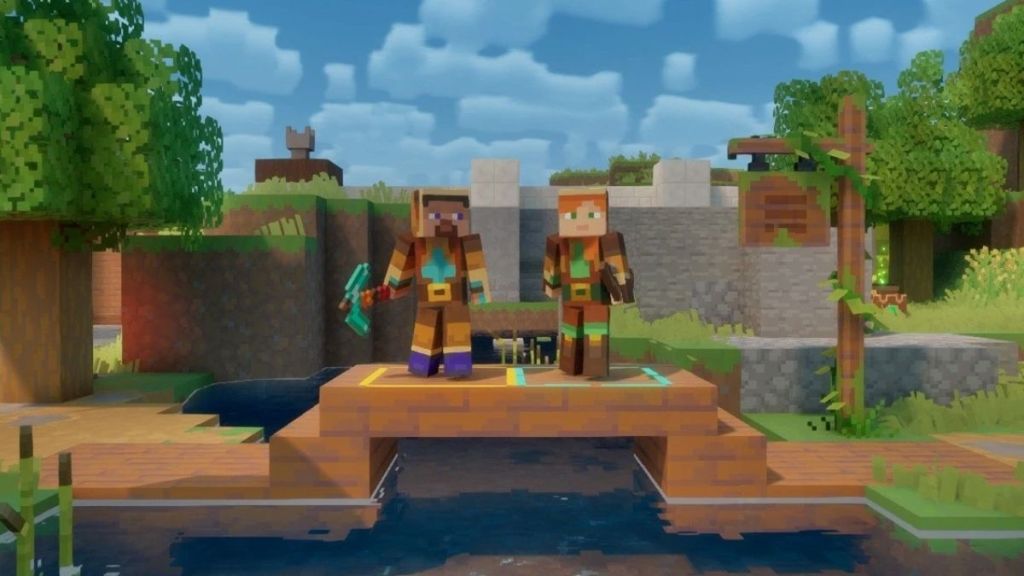
Minecraft Dungeons 2 supports local couch co-op: plug in multiple controllers and you’ll be able to add players from the same console or device. For remote play, Mojang has indicated crossplay support and Xbox Play Anywhere compatibility — that means PC, Xbox hardware, cloud, and supported handhelds should be able to join the same session. Being the party leader feels like an orchestra conductor: you cue the players and the show starts.
Can players on different platforms join my game?
Yes — based on official signals, crossplay is supported. That lets friends on Xbox, compatible PCs, cloud services, and certain handhelds play together. Use the platform friend overlay (Xbox Live on Microsoft platforms, Steam on Steam builds) to send cross-platform invites when available.
How many players can play co-op?
Minecraft Dungeons 2 supports up to four players in co-op, so parties of four should be the standard for most matchmaking and private sessions.
When Invites Fail: Quick Troubleshooting
At some point someone will wave a controller and say, “It won’t connect.”
If invites behave oddly, try these quick checks before you tear down the session:
- Confirm the tutorial is complete for everyone; unfinished tutorials are a common gate.
- Check platform privacy settings and friend lists — Xbox Live, Steam, and Microsoft Store each have social privacy toggles that can block invites.
- Make sure the party leader isn’t in a different region setting or matchmaking mode; switch to direct invite/private lobby if public matchmaking isn’t linking friends.
- Use the platform overlay to resend invites (Xbox Party or Steam Overlay). Sometimes the in-game prompt drops and the overlay contains the pending invite.
- Restart the game or the console/PC if invites still fail; a quick reboot often clears session tokens.
- Join a voice channel on Discord or an Xbox Party to coordinate who accepts when — synchronized clicks prevent timing mismatches.
When you and your friends are aligned on the tutorial, the party leader, and the platform overlay settings, invites usually stop being a mystery and start feeling like a reliable ritual. So who will you bring into the Sift — and will they pick up your dropped gear?