
I froze as the sun dipped below the blocky horizon and the first zombie groaned at my door. My friend’s name blinked orange in the Friends list—he was three minutes away from joining, if only the network would behave. That little pause taught me everything I needed to know about multiplayer: the tools matter more than luck.
I’m going to show you, step by step, how to get into multiplayer on Minecraft Java without wasting time on trial-and-error. You’ll see the fast options, the trade-offs, and the small settings that break or make a session. Read this like a patch note you actually want to apply.
You’ll know you’re ready when the basics are sorted out
Before you invite anyone over, tick a few boxes. Miss one and your friend will be staring at a “Unable to Connect” message while you wonder why.
- An official copy of Minecraft: Java Edition and a Microsoft account tied to that purchase.
- A stable internet connection; for LAN play everyone needs to be on the same Wi‑Fi or wired router and running the same game version.
- For public servers you need the server’s IP or URL.
- For an always-online hosted world, you’ll need an invite from the owner or a subscription to Minecraft Realms (there’s a 30‑day free trial).
Note: Java Edition and Bedrock differ in how multiplayer works; this guide focuses on Java for Windows, macOS, and Linux.
On the couch: LAN play is the quickest door to co-op
When everyone is in the same house, LAN feels effortless—until someone’s on a guest network and can’t see the host.
Here’s the clean route: you open your single-player world, pause, and advertise it on the local network. Your friends then pick it from their Multiplayer list. It’s private, free, and close to instant if your Wi‑Fi behaves.
- Open Minecraft Java and choose Singleplayer.
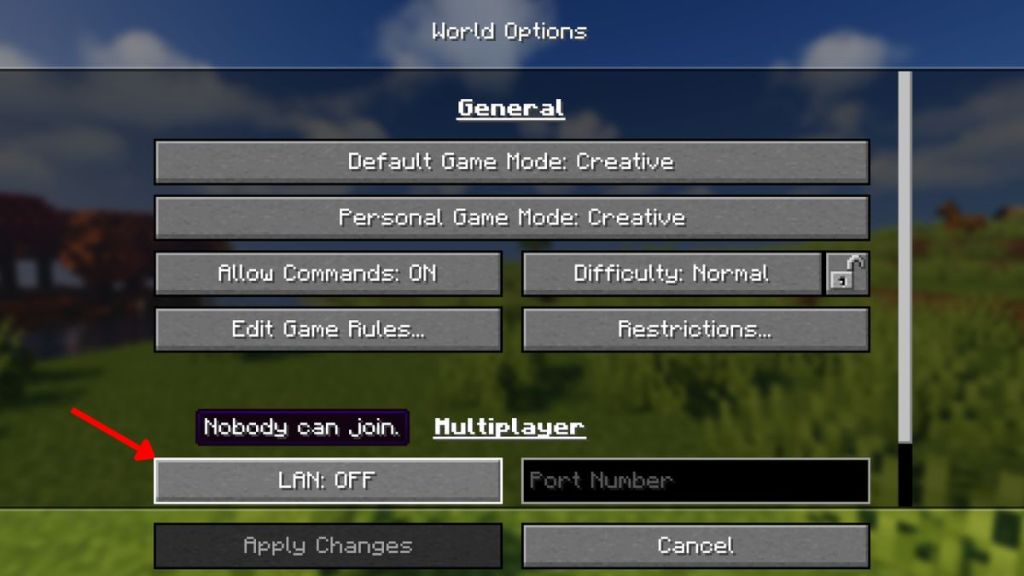
- Enter a world, press Esc to open the pause menu, pick World Options, toggle LAN, then hit Apply Changes.
- Friends on the same local network go to Multiplayer and your world will appear for them to join.
Public servers offer variety but come with etiquette
You’ll spot players trading, minigames running, and rule signs in chat—public servers behave like small online communities.
A public server is a city: pick the street that matches your playstyle—vanilla survival, minigames, roleplay, or PvP—and follow the local rules. If you want control instead, run your own server from the official Java server jar or use a third-party host.
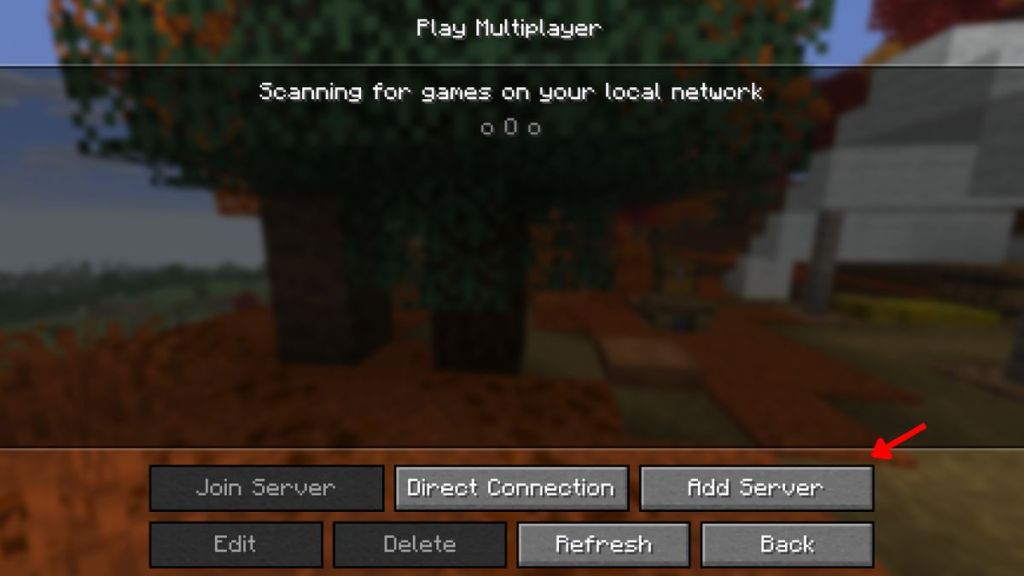
- From Minecraft’s main menu click Multiplayer, then Add Server.
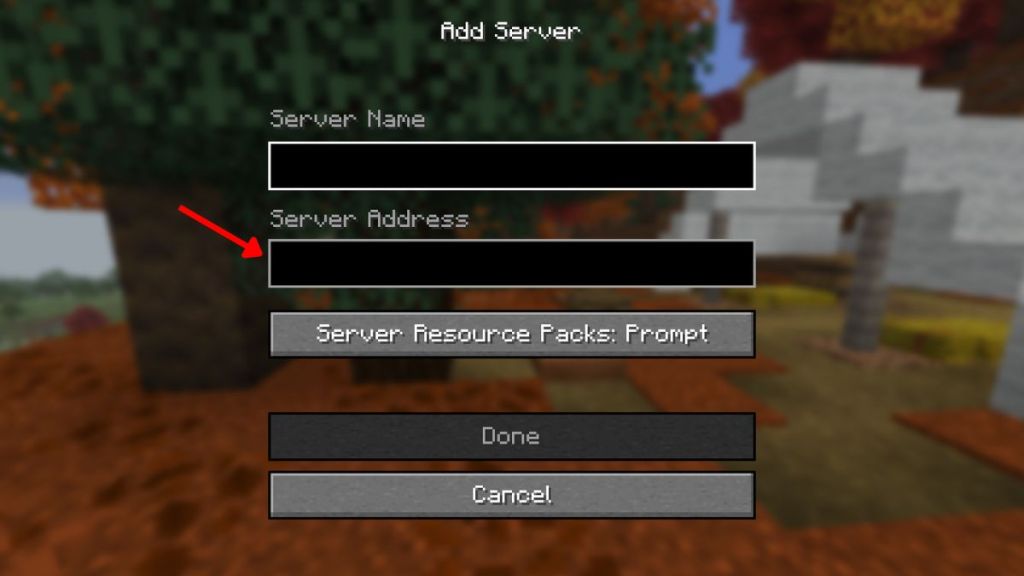
- Give the server a name and paste its IP address or URL into the address field.
- Click Done to save and then select the server from your list to join.
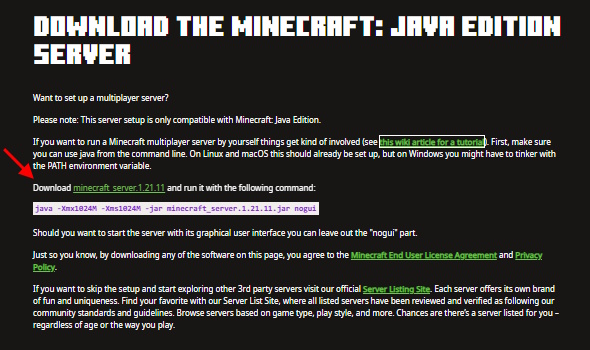
- To host your own, download the official Java server software from Mojang, or pick a managed host such as Apex Hosting, BisectHosting, or Shockbyte to avoid port forwarding and uptime headaches.
When you want friends to drop in without ports and pain
After recent updates the Friends feature became a surprisingly reliable way to invite someone who’s an ocean away.
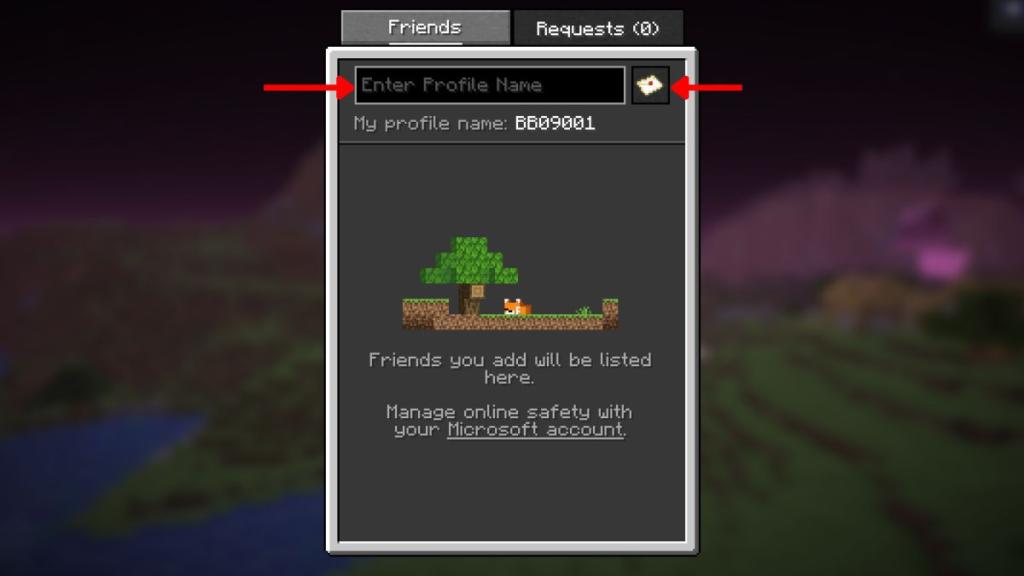
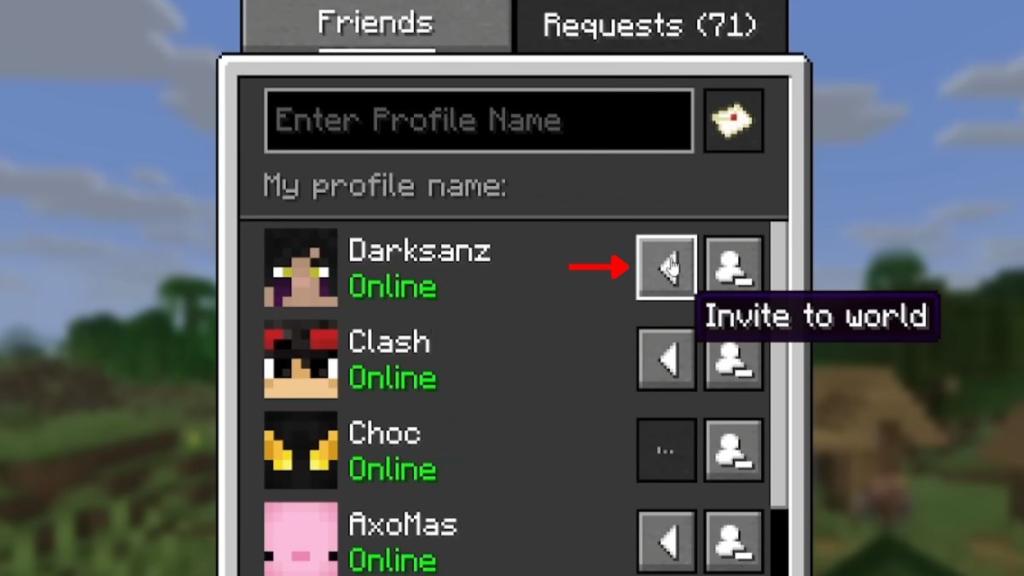
The invite system was a passport: add a friend by profile name, send the request, and once accepted you can push an invite straight to their client. It uses a peer-to-peer link but doesn’t force everyone onto the same local network.
- Open the single-player world you want to share and pause the game.
- Click the Friends icon in the pause menu, type your friend’s profile name, and send a request using the envelope icon.
- Ask your friend to accept, then send the in-game invitation to join.
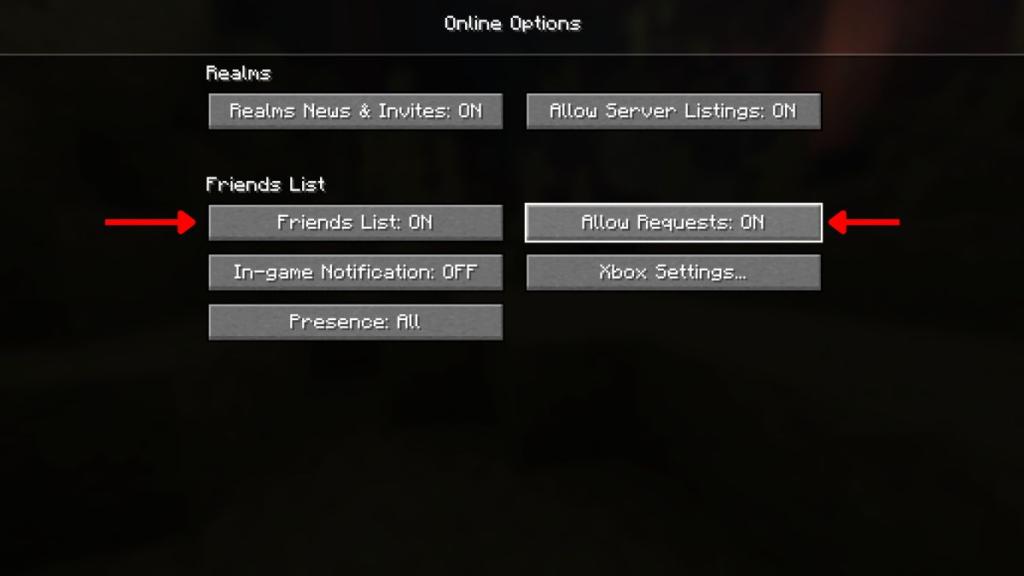
- Turn on the Friends List options via Options > Online in the main menu if someone can’t see you.
Keeping a world online so friends can play anytime
Many of us want a persistent world that isn’t tied to the owner’s desktop or schedule.
Mojang’s official hosting, Minecraft Realms, keeps your world running 24/7 and simplifies invites and backups. You can try it free for 30 days; after that it becomes a paid subscription if you keep it. If you prefer community-run alternatives, third-party hosts offer managed servers and better mod/plugin support—use Paper, Spigot, or Bukkit if you plan to run plugins.
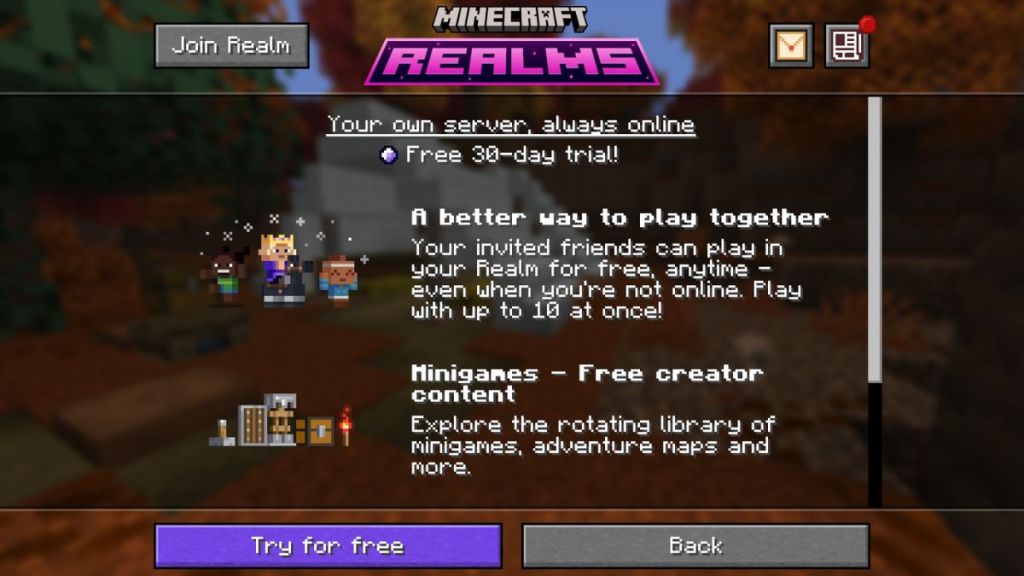
- Open Minecraft Java and select Minecraft Realms from the main menu.
- Try the 30‑day free trial if you haven’t used Realms before.
- If a friend owns a Realms world they can send an invite; accept it from notifications to join.
- For mods and plugins, third-party hosts often give more flexibility than Realms; consider managed hosts if you want 24/7 uptime and easy mod installs.
Realms is the simplest if you want a world that’s always there; managed hosts are better for modded servers and custom plugins.
How to play multiplayer on Minecraft 26.3 in 2026?
You can play multiplayer on Minecraft Java in 2026 by joining public servers, hosting privately over LAN, inviting friends via the in-game Friends feature, or accepting an invite to a hosted world such as Realms. Keep your game version matched and your Microsoft account active to avoid errors.
How to play multiplayer Minecraft Java on different networks?
To play with people on other networks use a public server, a hosted private server (third‑party hosts provide static IPs and uptime), or a Mojang-hosted world via Realms. The Friends feature also works across networks without manual port forwarding.
Small settings—version mismatches, Friends toggles, or a stray guest Wi‑Fi—cause most multiplayer failures. Fix those and you’ll spend less time on menus and more on griefing your friends or building bizarre contraptions. Which method will you try first?